Welcome to Board.Vision Tutorials!
In this tutorial, we will walk you through the steps to leave your Executive Assistant a message.
Note: This article applies to Board.Vision iPad app version 4.0.0 and requires iPadOS 17.0 or later.
To leave your Executive Assistant a message:
1) Log in to the Board.Vision App with your registered email address and password.
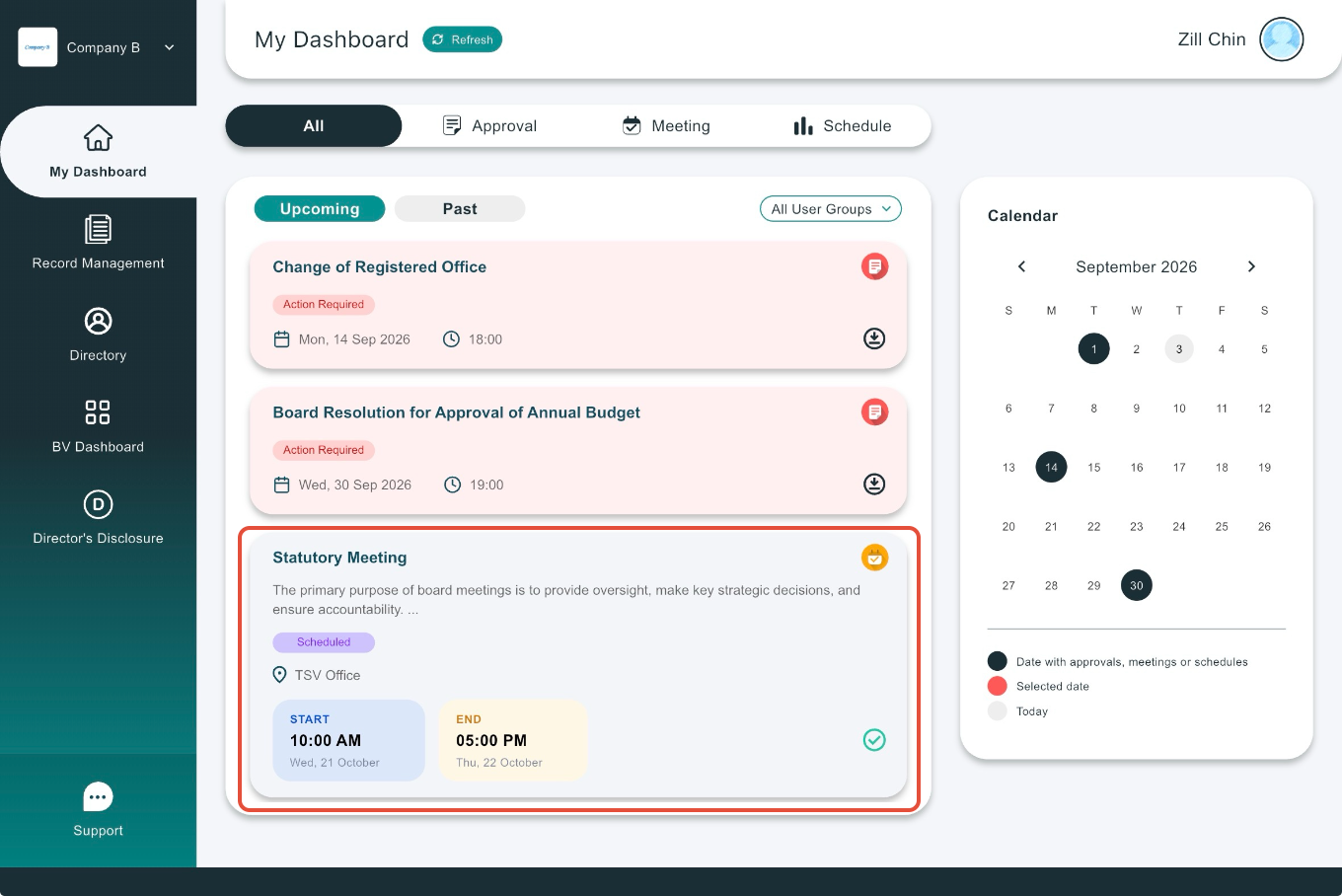
2) Select the approval or meeting on the Dashboard.
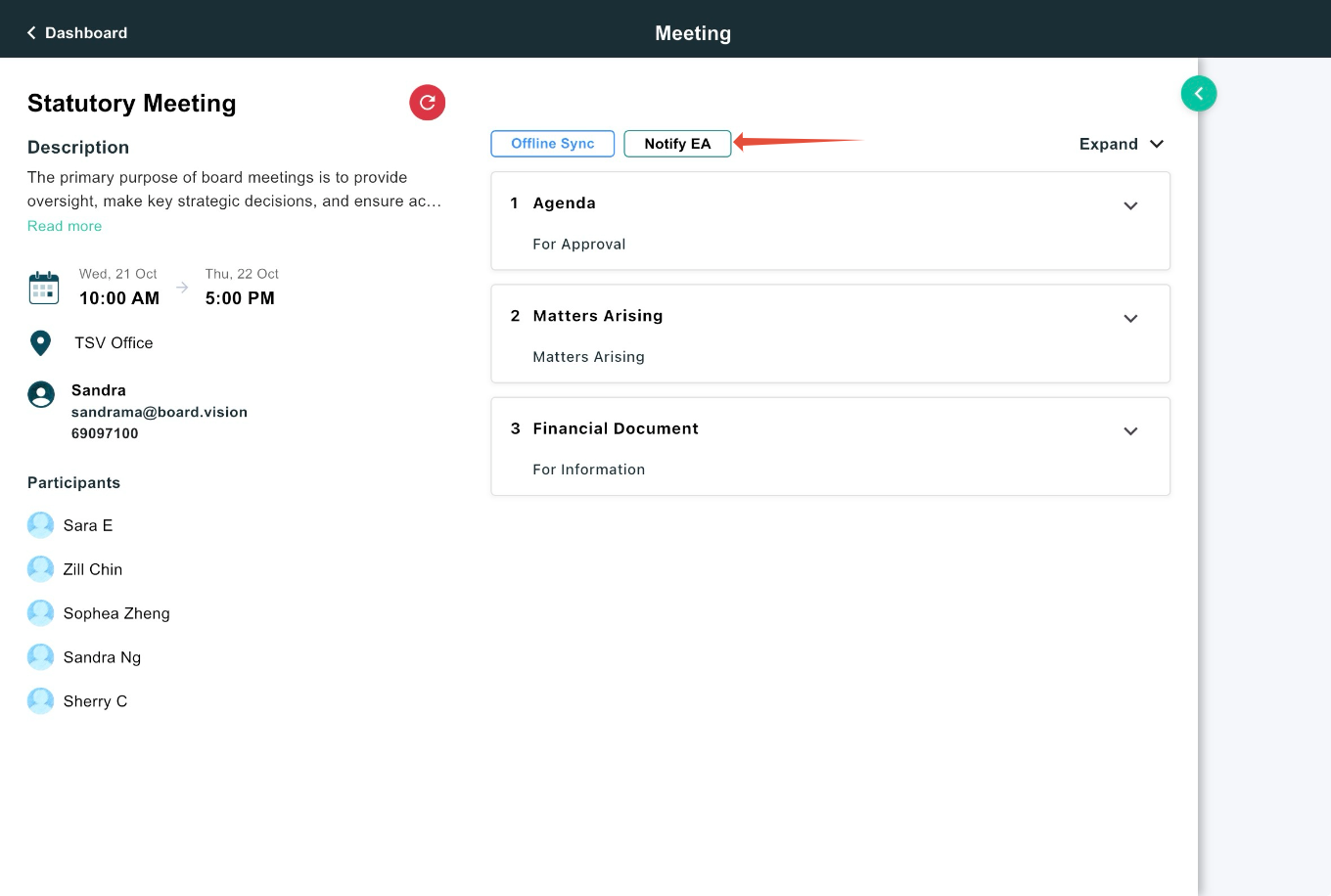
3) On the Meeting page, tap on Notify EA located above the first meeting agenda.
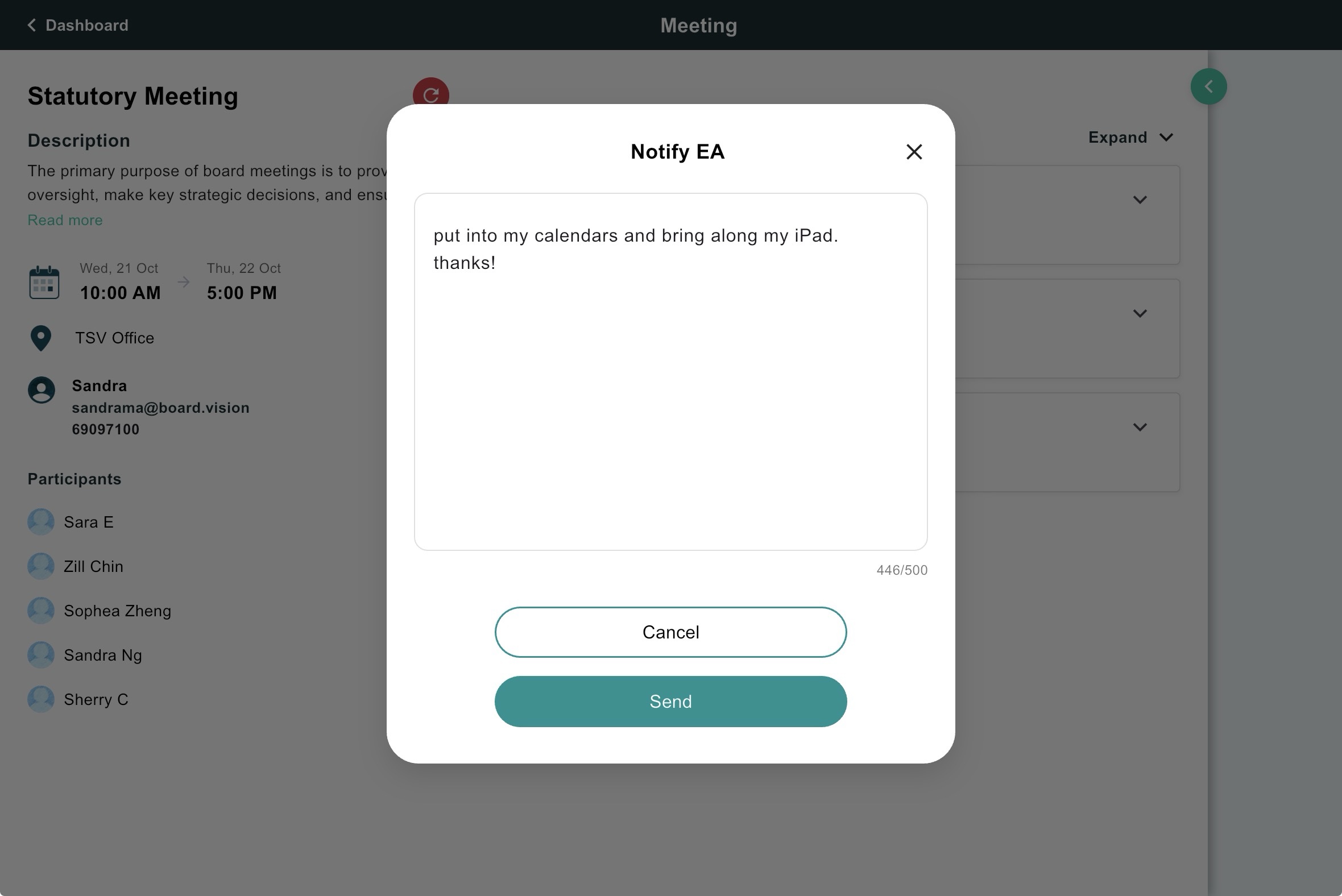
4) In the pop-up window, enter your message and tap Send.
An email will be sent to your EA, and you will be cc’d. Your message will appear under “Additional Message.”
You have completed the tutorial on how to leave your Executive Assistant a message.
Was this article helpful?
That’s Great!
Thank you for your feedback
Sorry! We couldn't be helpful
Thank you for your feedback
Feedback sent
We appreciate your effort and will try to fix the article