Welcome to Board.Vision Tutorials!
In this tutorial, we will walk you through the steps to replace any Meeting agenda documents.
Important Note: Board.Vision web app is supported on Google Chrome (version 65.0 and later) and Microsoft Edge (version 87.0 and later).
To replace any Meeting agenda documents:
1) Log in to your Board.Vision account using your registered email address and password.
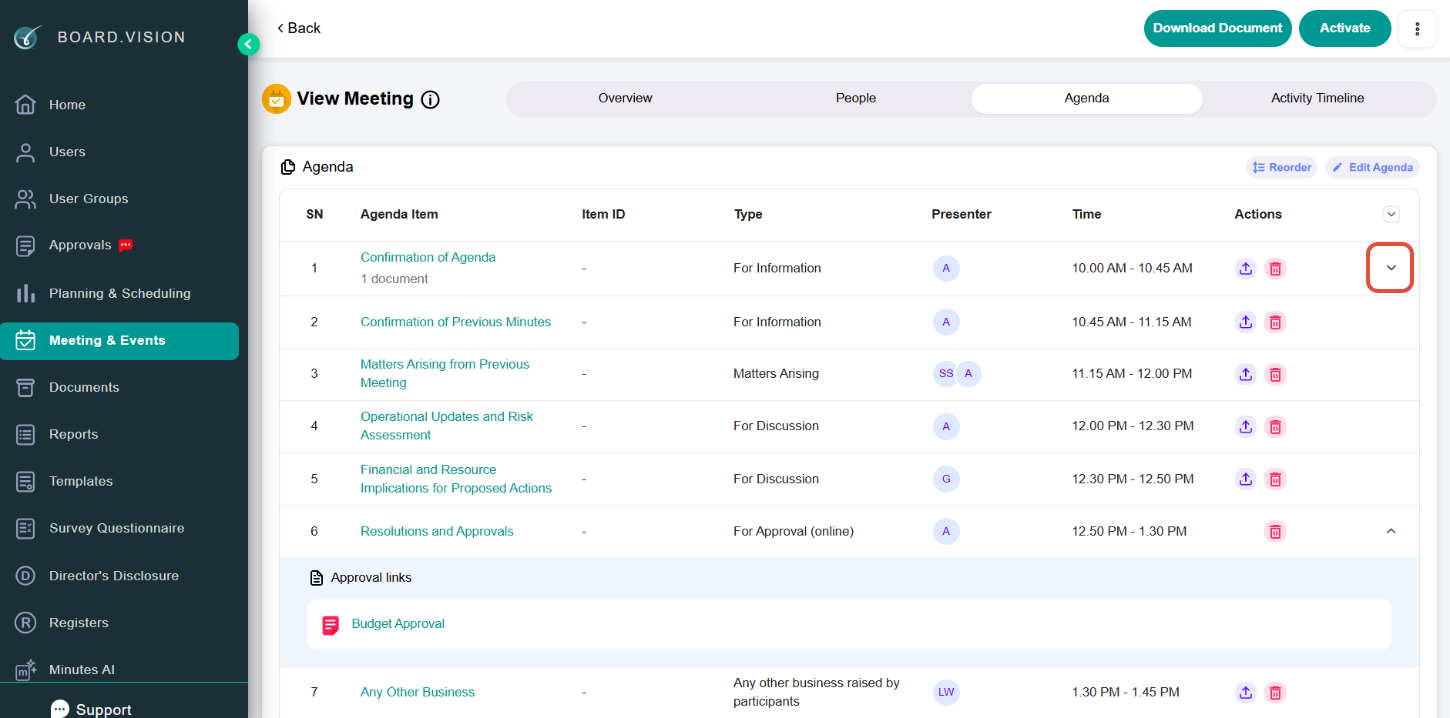
2) Go to the relevant Meeting. Then, under the 'Agenda' tab, click the expand icon to view the agenda documents.
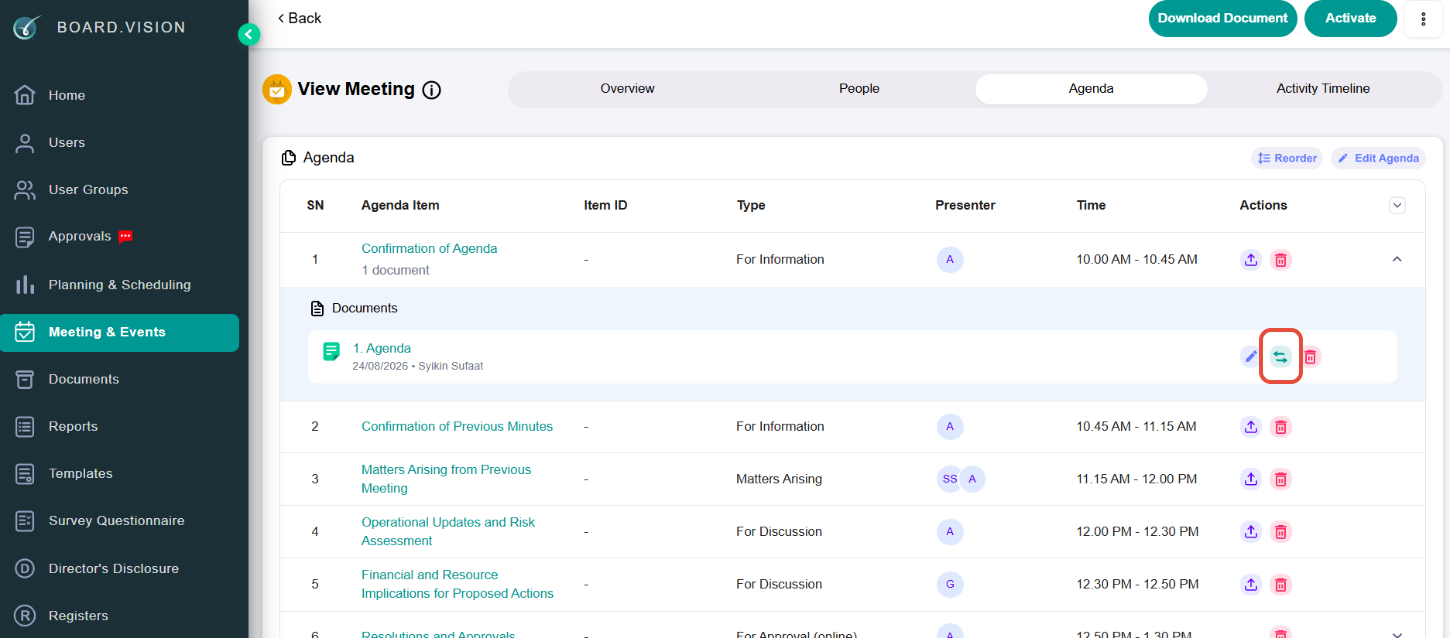
4) Locate the agenda document you want to replace and click the replace icon.
5) Click Your Device or drag/drop the agenda document into the upload area. You may also select a document you have saved in the Record Management System.
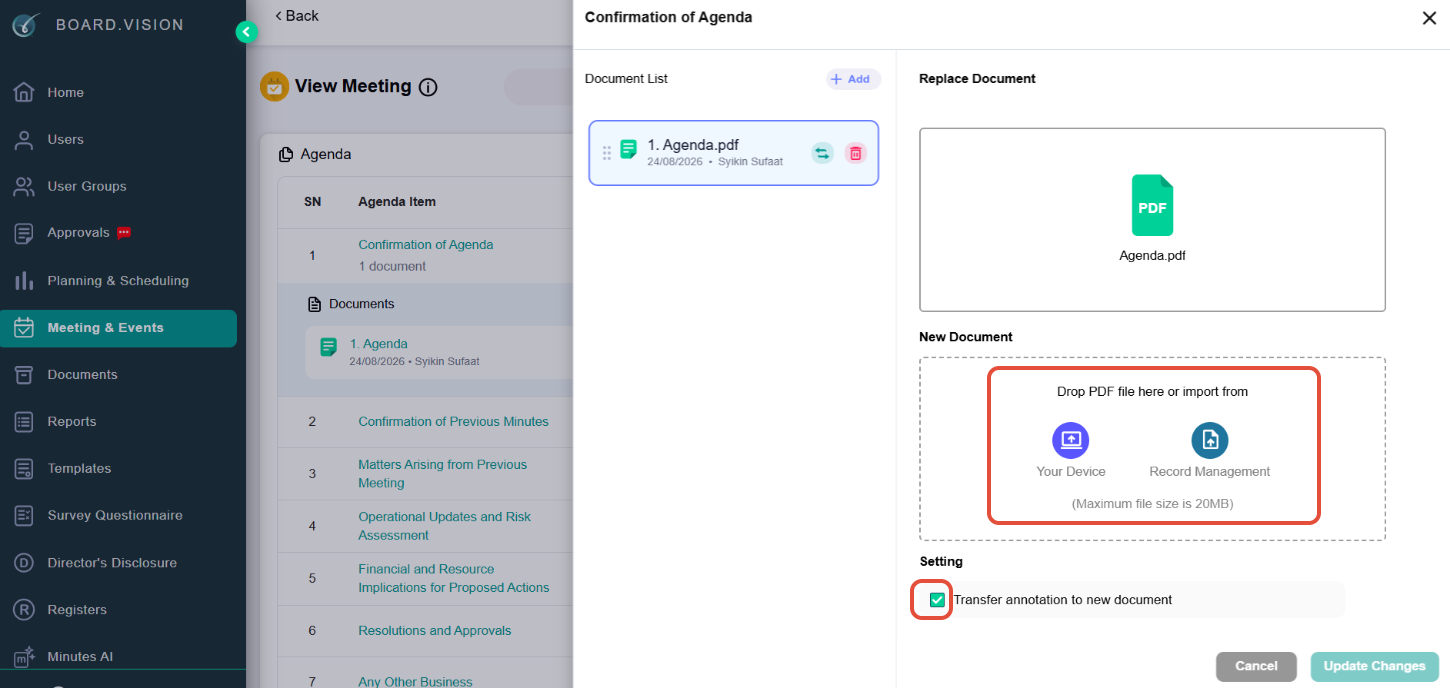
Manage annotations, if applicable.
- To transfer users' existing annotations to the replacement document, keep the Transfer annotation to new document checkbox selected.
- To prevent existing annotations from being transferred, uncheck the checkbox.
You have completed the tutorial on how to replace meeting agenda documents.
Was this article helpful?
That’s Great!
Thank you for your feedback
Sorry! We couldn't be helpful
Thank you for your feedback
Feedback sent
We appreciate your effort and will try to fix the article