Welcome to Board.Vision Tutorials!
In this tutorial, we will walk you through the steps to save or share a document.
To save or share a document:
1) Open the document you would like to save or share. The menu toolbar will be shown at the top of the screen.
Tap on the 'Arrow Up' icon.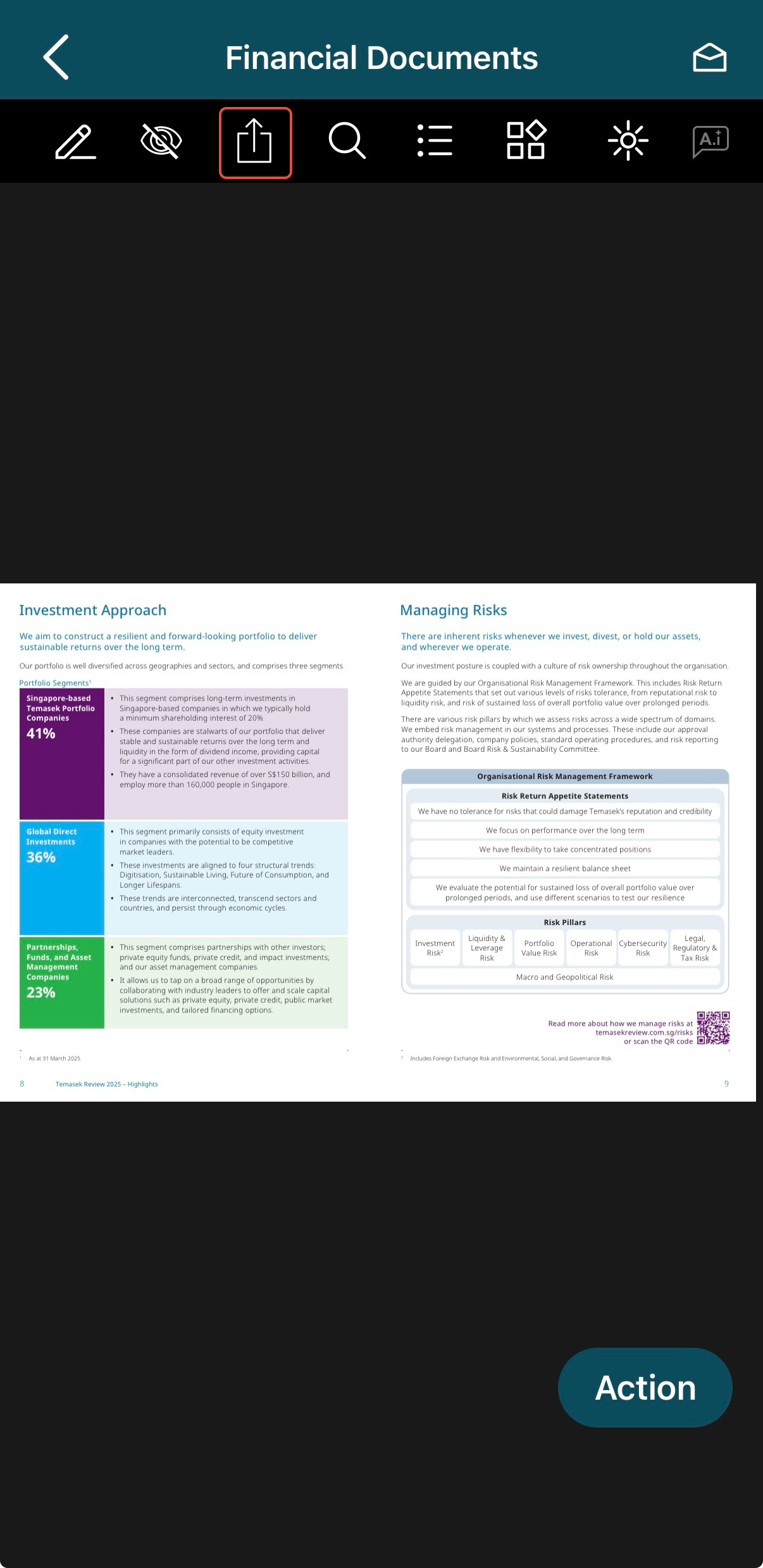
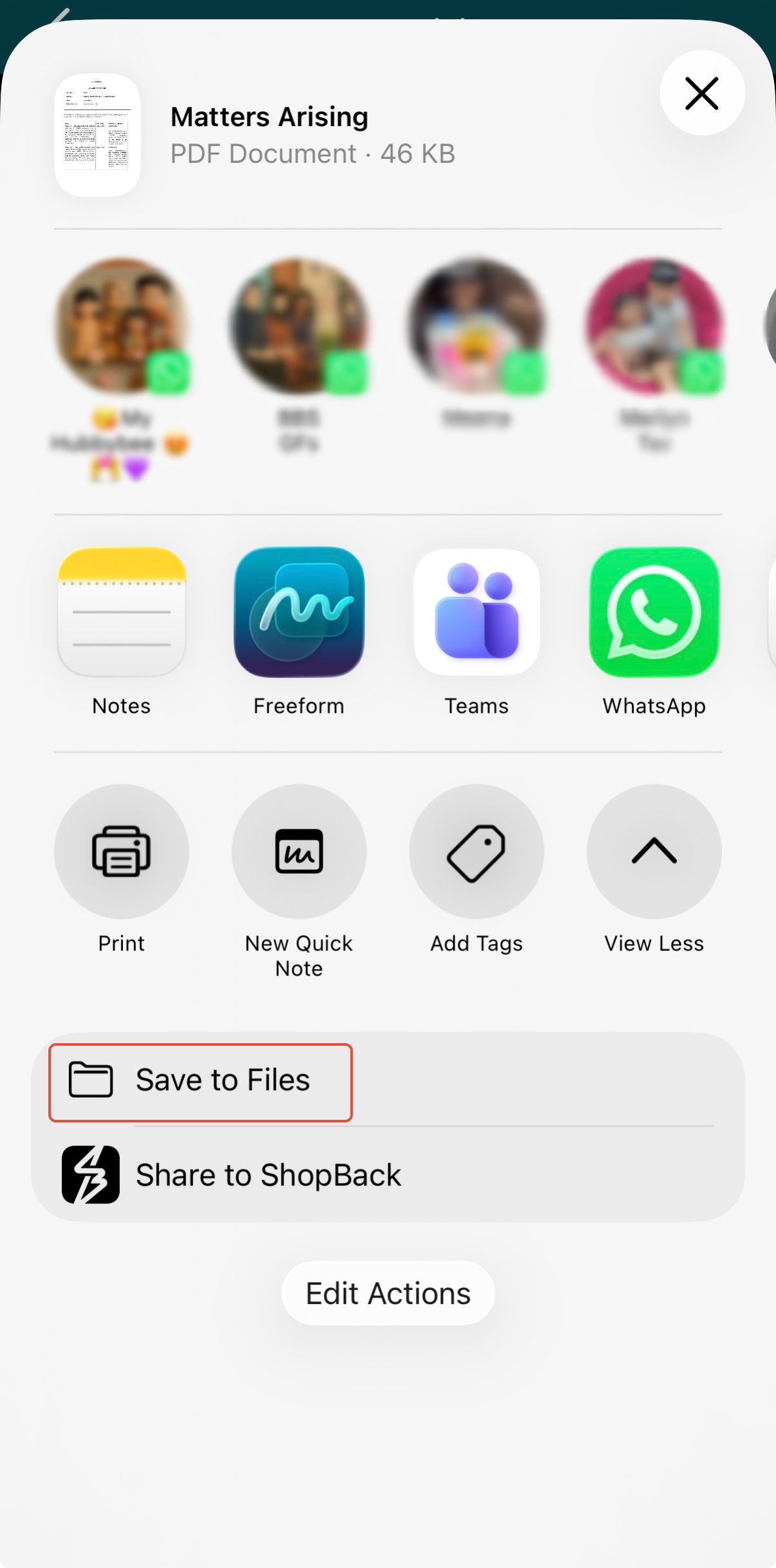
2) Choose the Recipient/ Application from the pop-up screen. You can also save the document to your device by selecting 'Save to Files'.
Important Note:
If a user hides the annotation, the user will be sharing/saving the original copy of the document.
If a user shows the annotation, the user will be sharing/saving the annotated copy of the document.
You have completed the tutorial on how to save and share a document.
If you face any issues, please reach out to our Board.Vision Customer Success Team at support@board.vision or +65 6909 7100 and we will be happy to help.
Our hotline operating hours are from Mondays to Fridays 9:00 AM to 6:00 PM SGT (excluding public holidays).
Was this article helpful?
That’s Great!
Thank you for your feedback
Sorry! We couldn't be helpful
Thank you for your feedback
Feedback sent
We appreciate your effort and will try to fix the article