To activate your account, please ensure you have the following:
Your registered email address with Board.Vision, along with the password you use to access this email (to check your inbox).
Your registered mobile number, which will be used to receive a One-Time Password (OTP) for verification.
Alternatively, you may choose to receive the OTP via email during account activation.
Once you have these ready, you may proceed with the account activation.
To activate your account:
1) Open the Board Vision app.
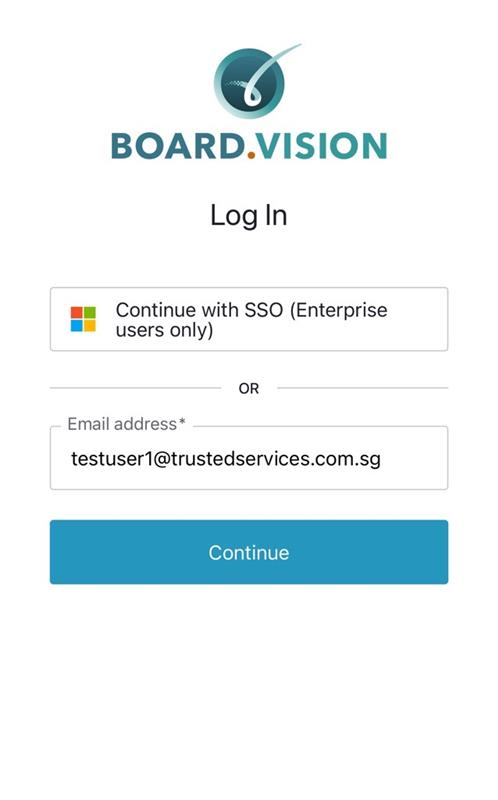
2) On the login screen, enter your email address and tap on Continue.
3) Enter your email password and click on Sign in.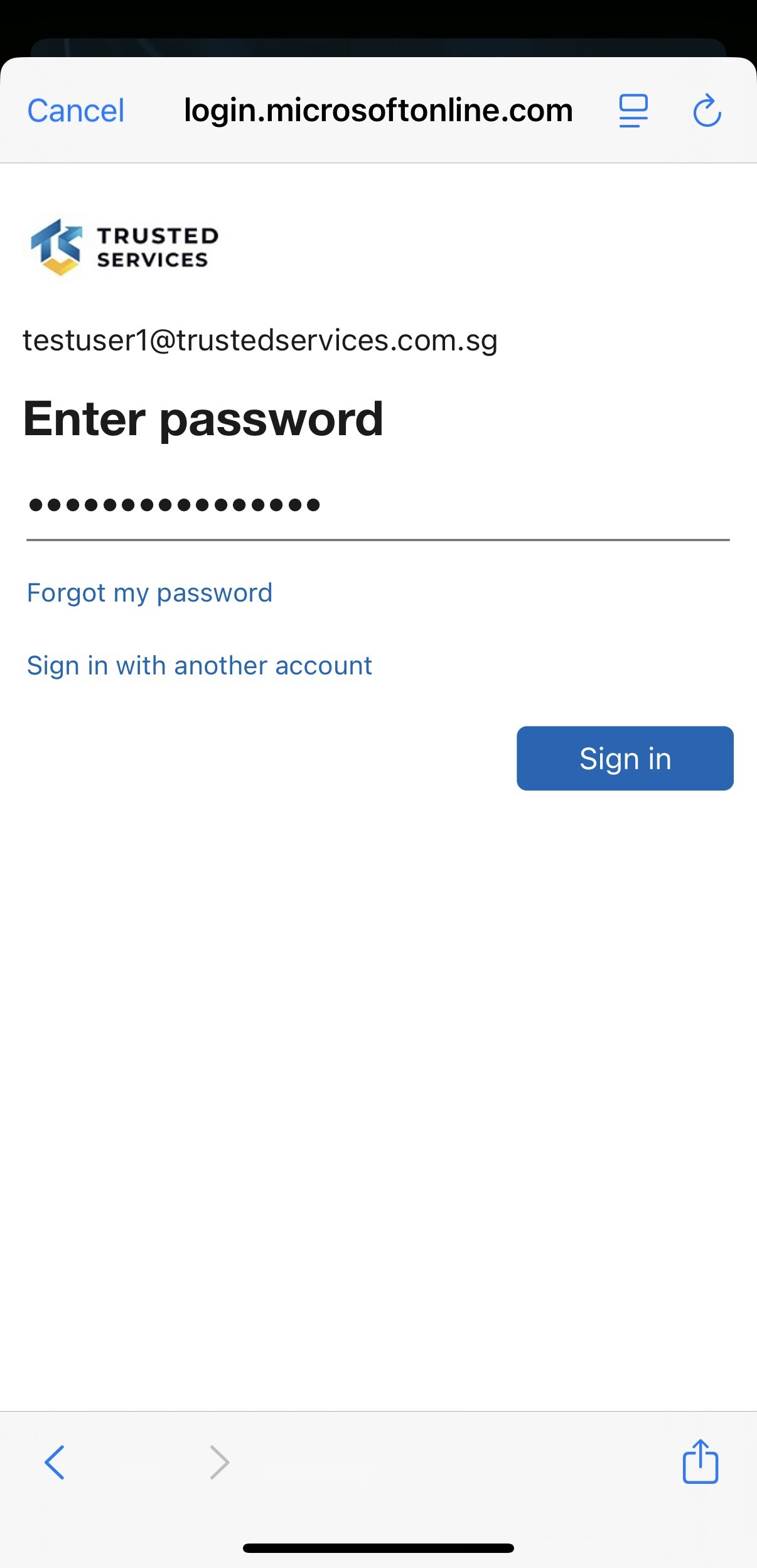
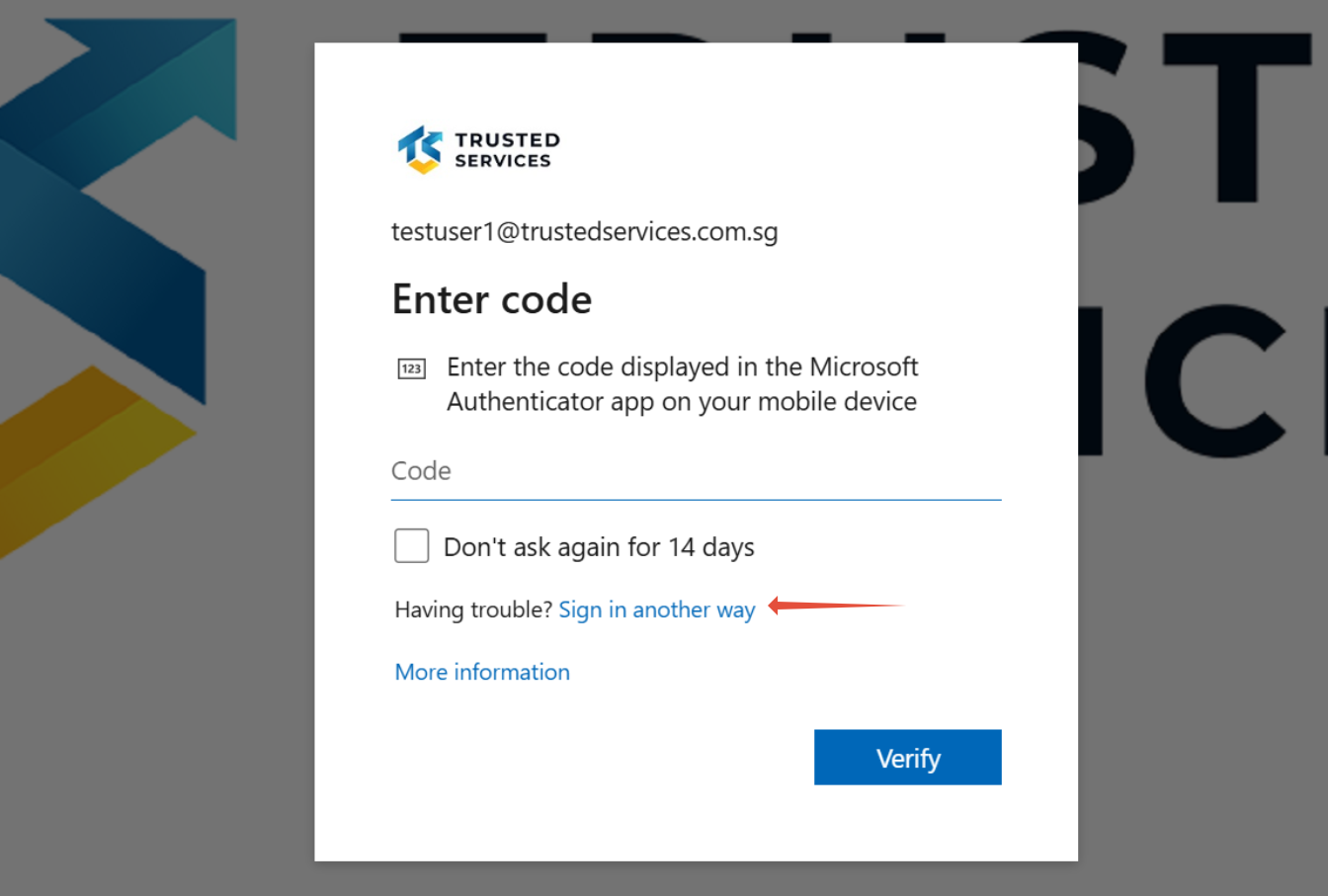
4) Enter the verification code displayed in the Microsoft Authenticator app on your mobile device.
Alternatively, you may choose a different verification method by tapping “Sign in another way”.
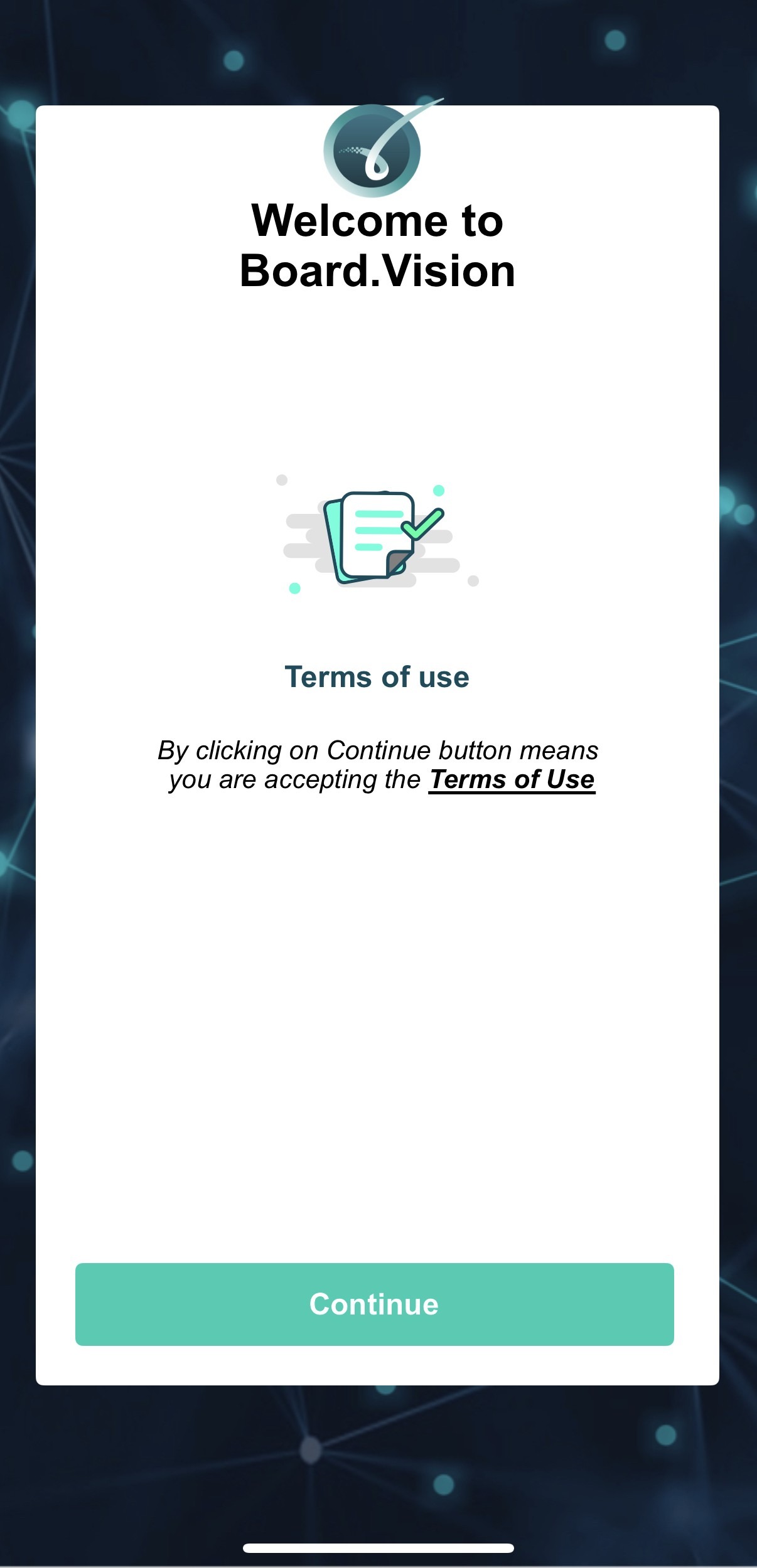
5) Tap on the ‘Agree and Continue’ button to accept the Board.Vision Terms of Use.
If your organisation has signed a separate agreement with Board.Vision, that agreement will apply and take precedence over the general Terms of Use.
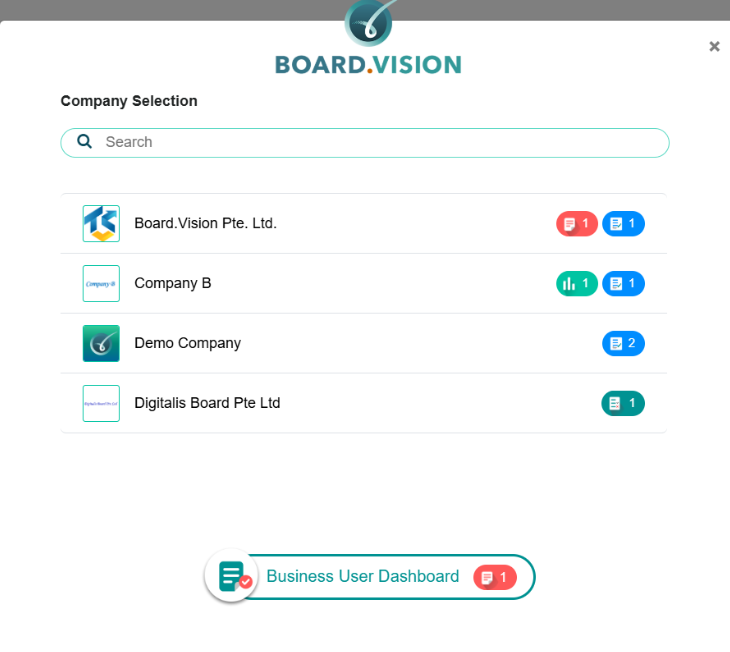
6) If your account is linked to multiple companies, you will see a company selection screen after logging in.
Tap on the company name you wish to access.
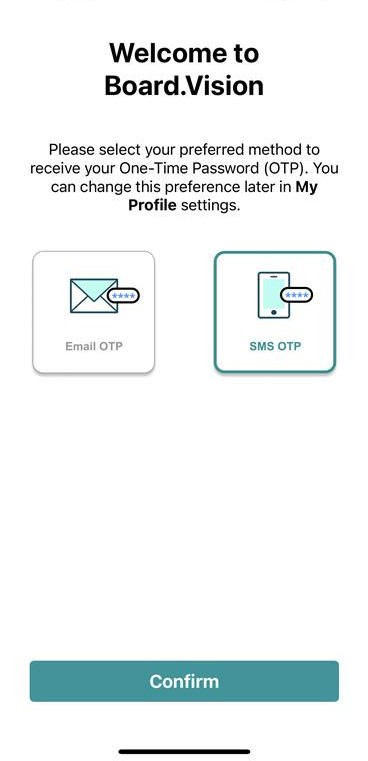
7) Select your preferred method to receive your One-Time Password (OTP) and tap on Confirm.
8) Once the OTP has been verified successfully, let’s add some additional security to your account by setting up a 4-digit PIN to access Board Vision to safeguard it from unauthorized access.
This is an optional step and may be encountered only if it is set by your Board Vision Administrator.


10) Your Board Vision account is now successfully activated. Now that you are logged in, the next time you open Board Vision, you will be able to log in using TouchID or FaceID.
If you face any issues, please reach out to our Board.Vision Customer Success Team at support@board.vision or +65 6909 7100 and we will be happy to help.
Was this article helpful?
That’s Great!
Thank you for your feedback
Sorry! We couldn't be helpful
Thank you for your feedback
Feedback sent
We appreciate your effort and will try to fix the article