Welcome to Board.Vision Tutorials!
In this tutorial, we will walk you through the steps to create a survey with templates.
Important Note: The Board.Vision web app is optimised and supported for desktop use on Google Chrome (version 65.0 and later) and Microsoft Edge (version 87.0 and later).
To use a template to create a survey:
1) Log in to your Board.Vision account using your registered email address and password.
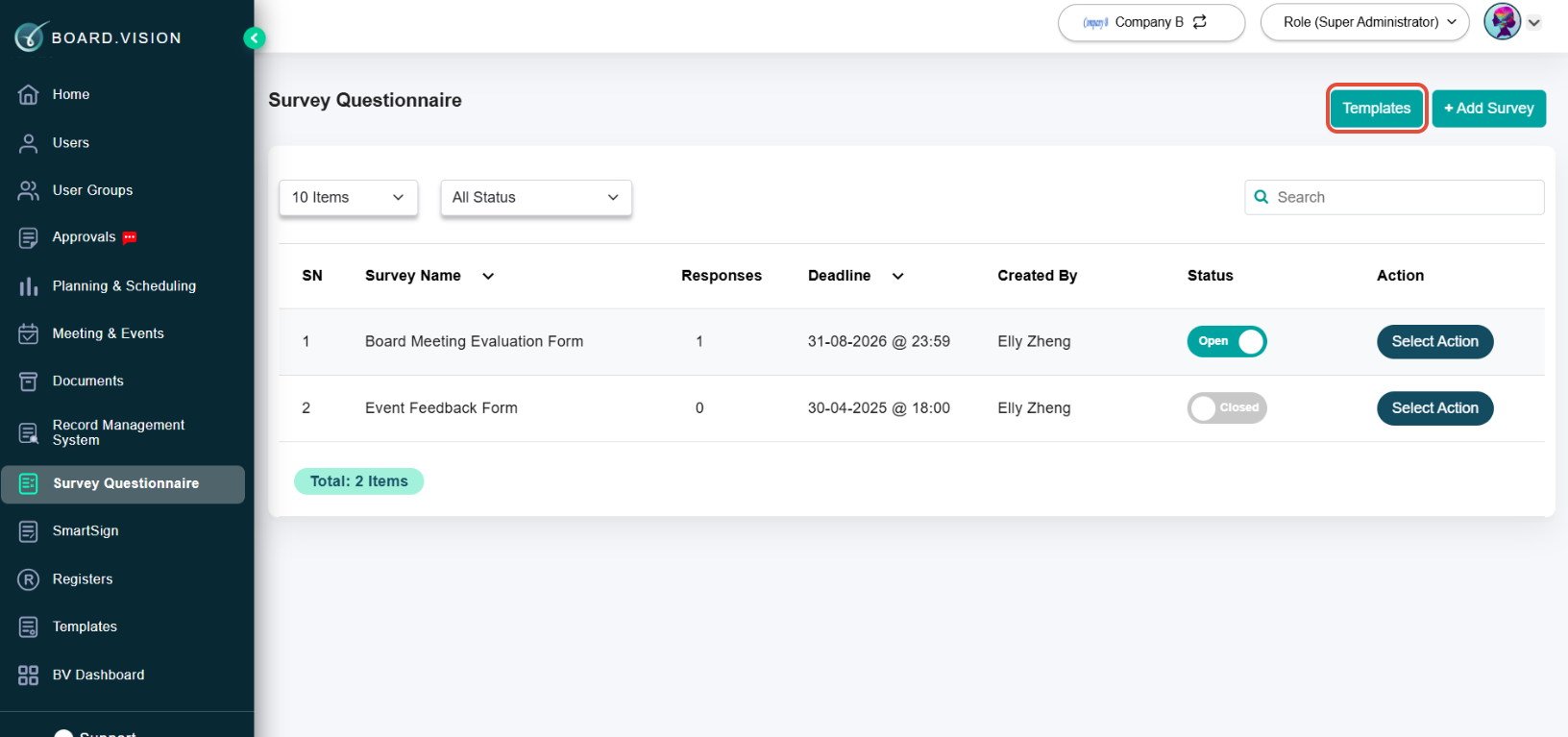
2) From the left navigation menu, go to Survey Questionnaire, and click on Templates.
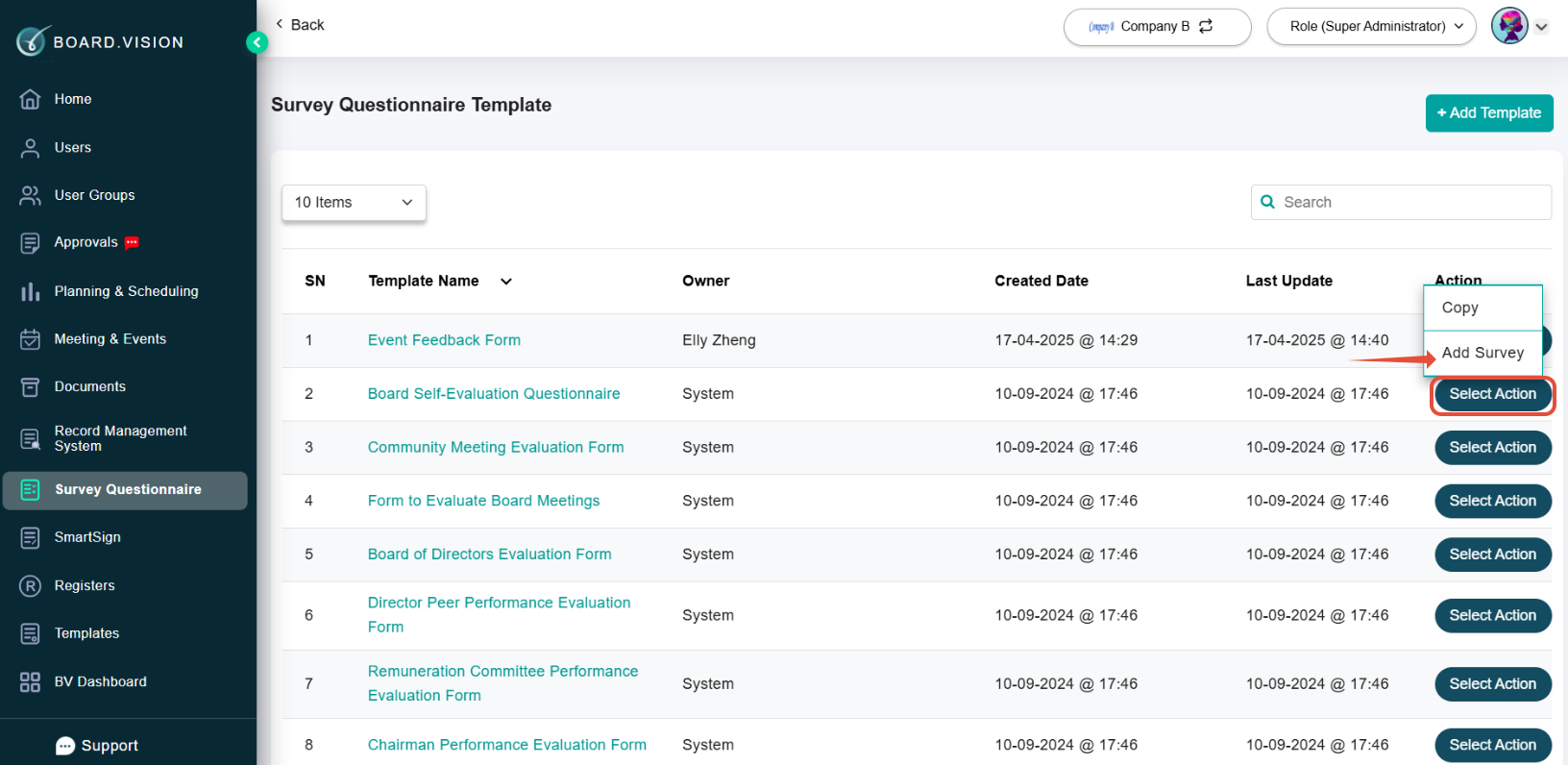
3) Click on the Select Action button and choose Add Survey.
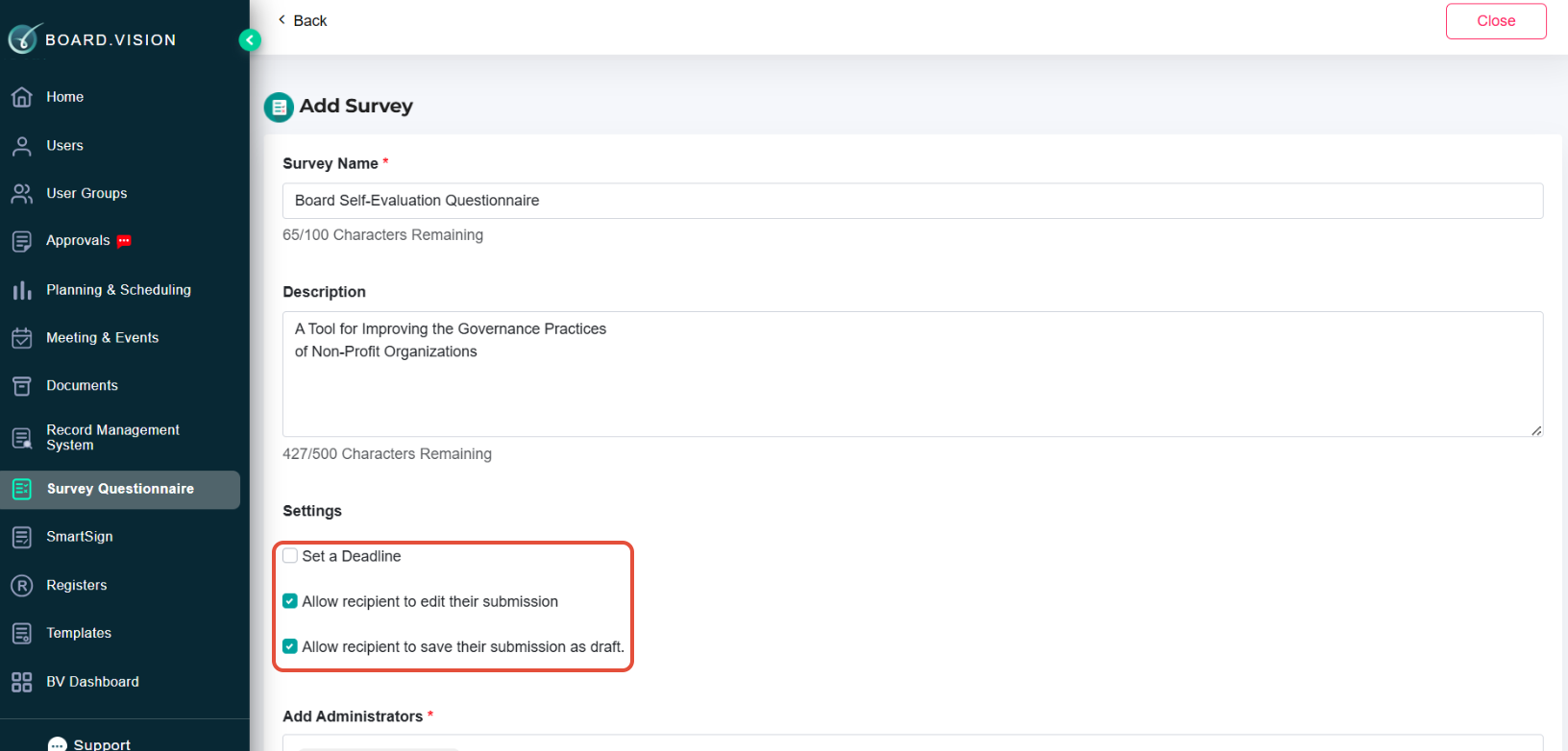
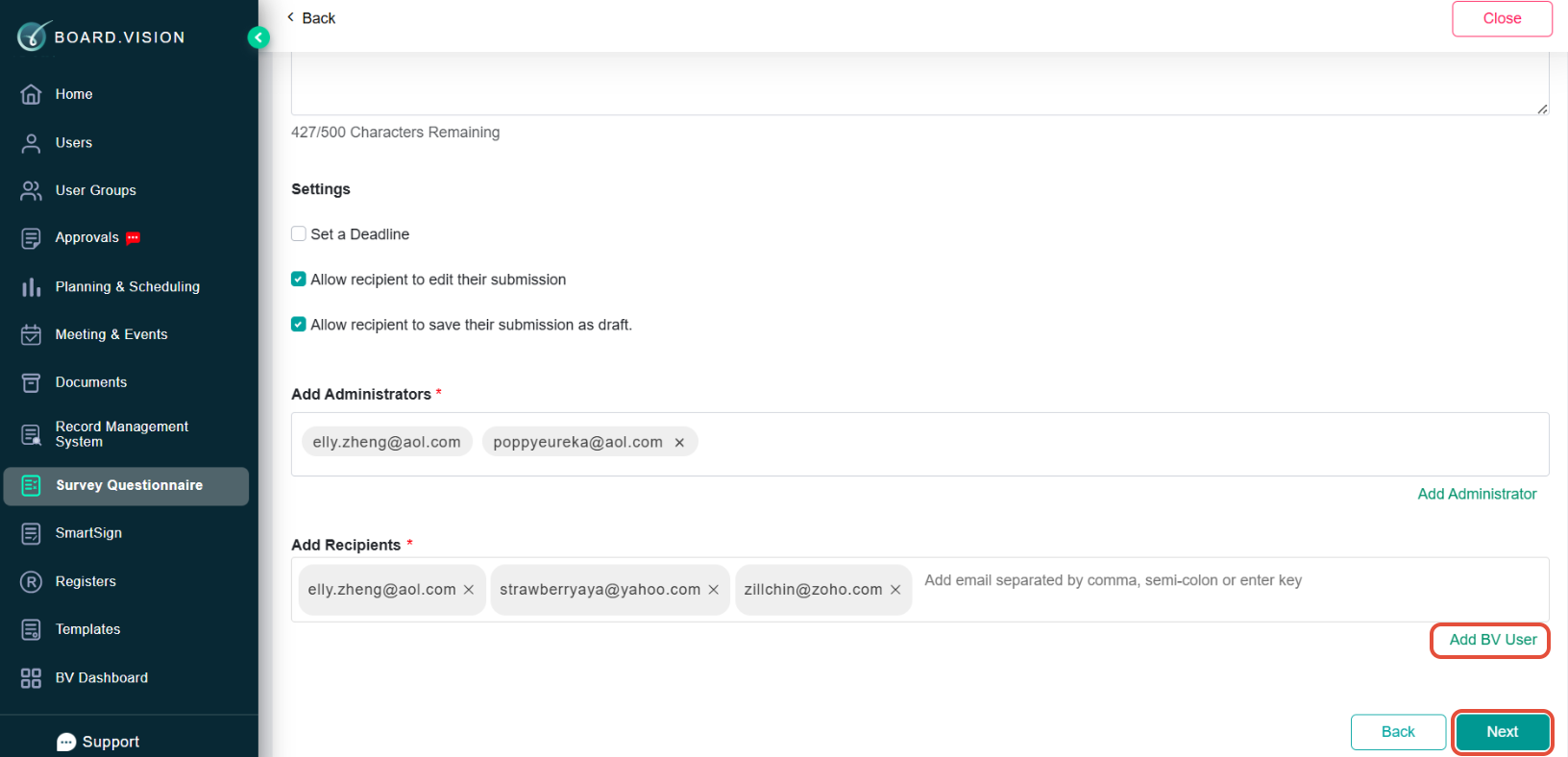
4) Update the Survey Name, Description, and configure your preferred settings:
Set a Deadline: Specify a closing date and time for responses.
Allow recipient to edit their submission: Enable respondents to modify their answers after submitting.
Allow recipient to save submission as draft: Permit respondents to save progress and complete the survey later before the deadline.
5) Click Add Administrator to delegate management rights to other team members. This allows them to monitor responses or edit settings.
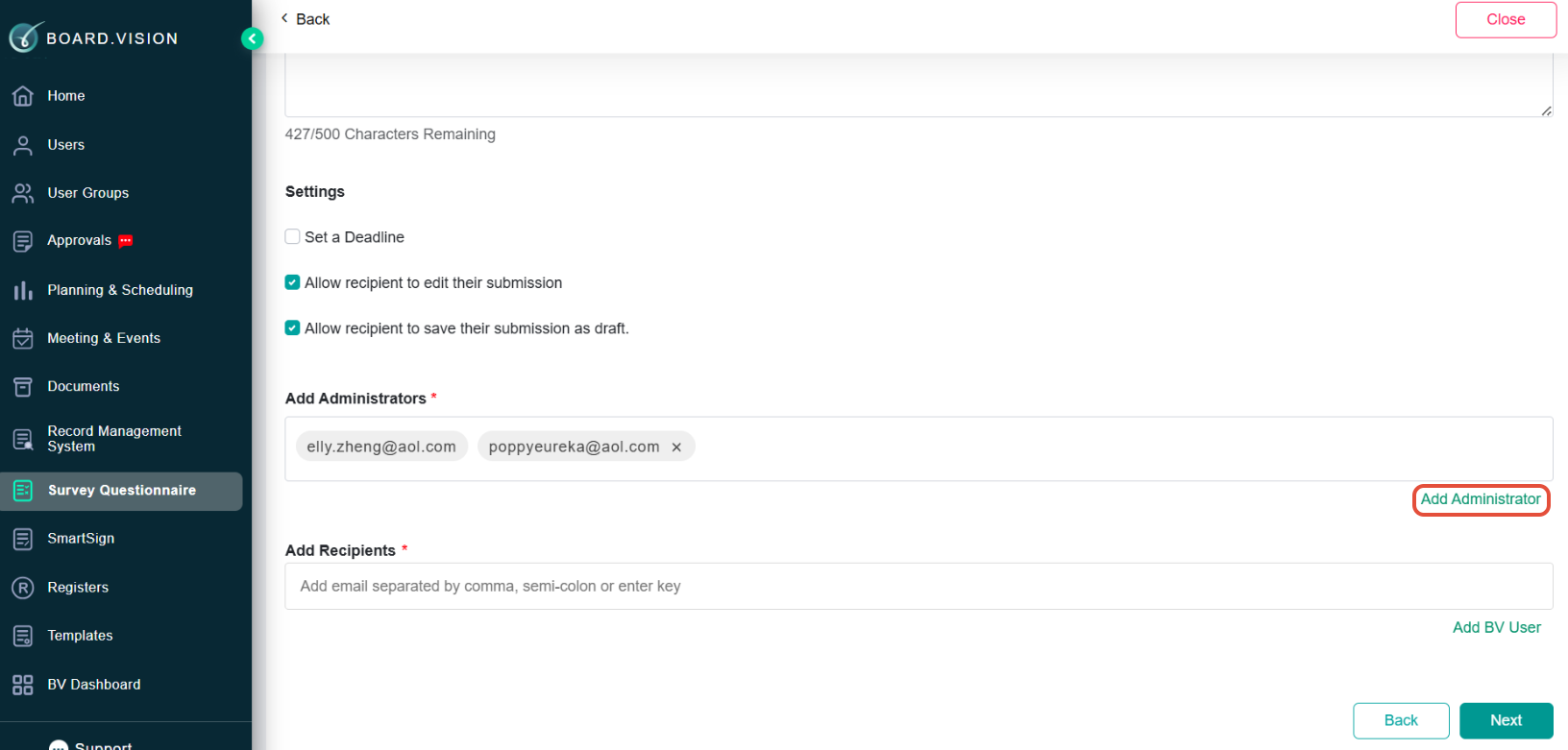
6) Enter recipient email addresses manually, or click Add BV User to select from existing Board.Vision users. Click Next to proceed.
7) On the Create Survey form, you will find questions pre-populated for this survey.
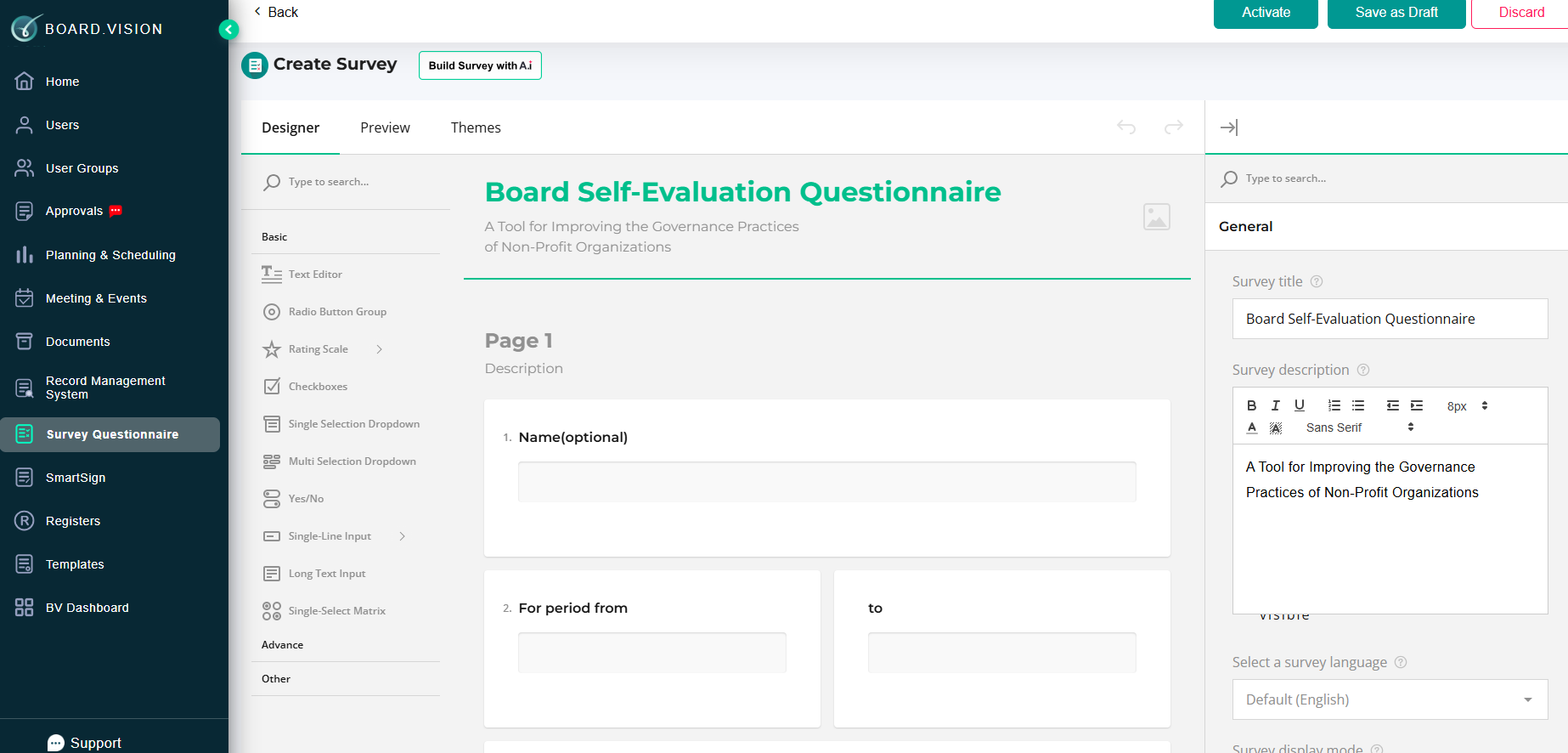
8) Choose your preferred method to update your survey questions:
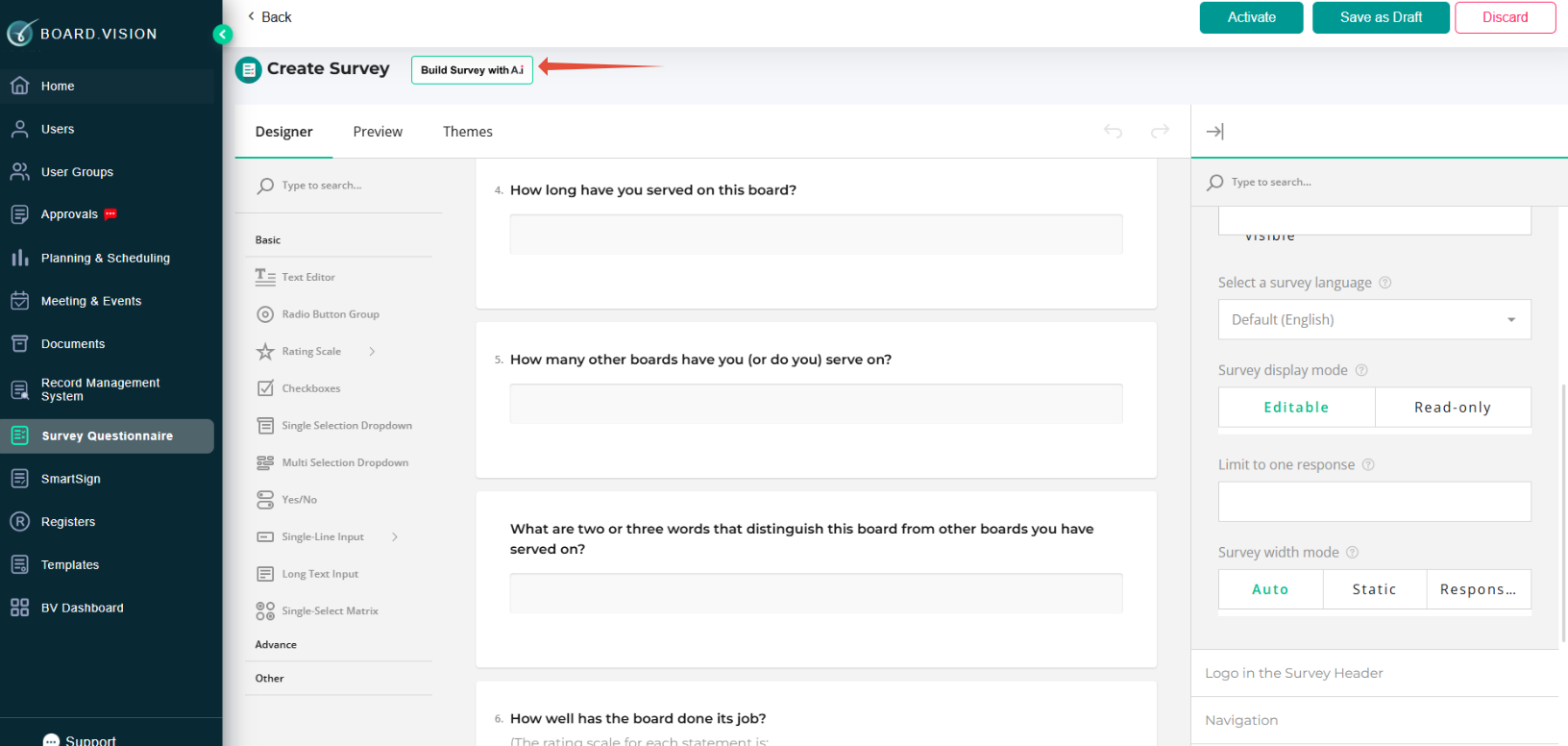
a) Option A: Generate with AI (Speed Up Creation)
Note: The AI Assistant is available if your company has opted for this feature.
Provide a survey topic or goal (e.g., "Update the survey questions better").
Click Generate. AI will automatically suggest relevant questions.
Review, edit, or customise the AI-suggested questions to match your needs.
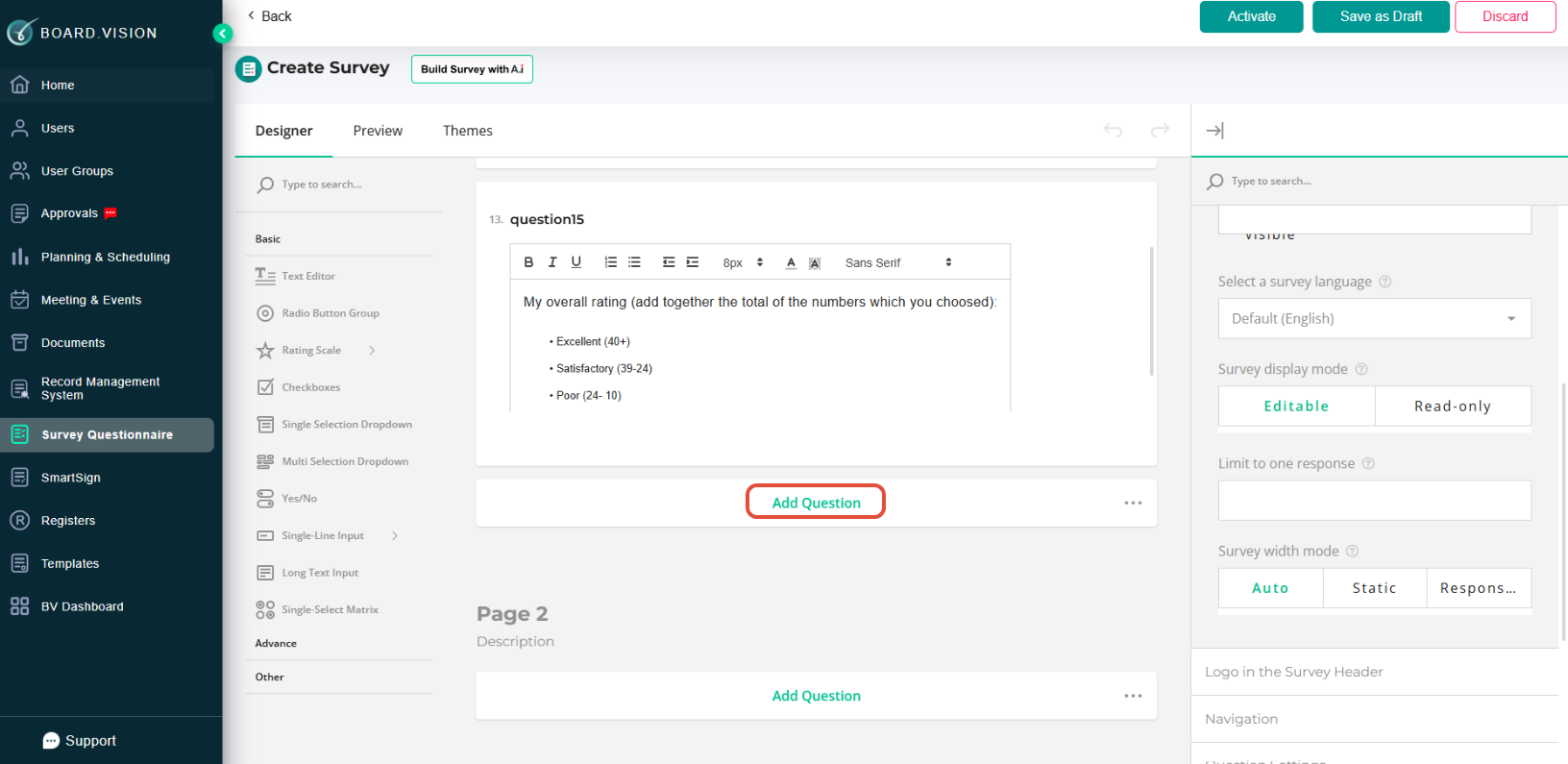
b) Option B: Edit Manually
Make updates or click + Add Question to include additional questions as needed.
9) For Updating Manually
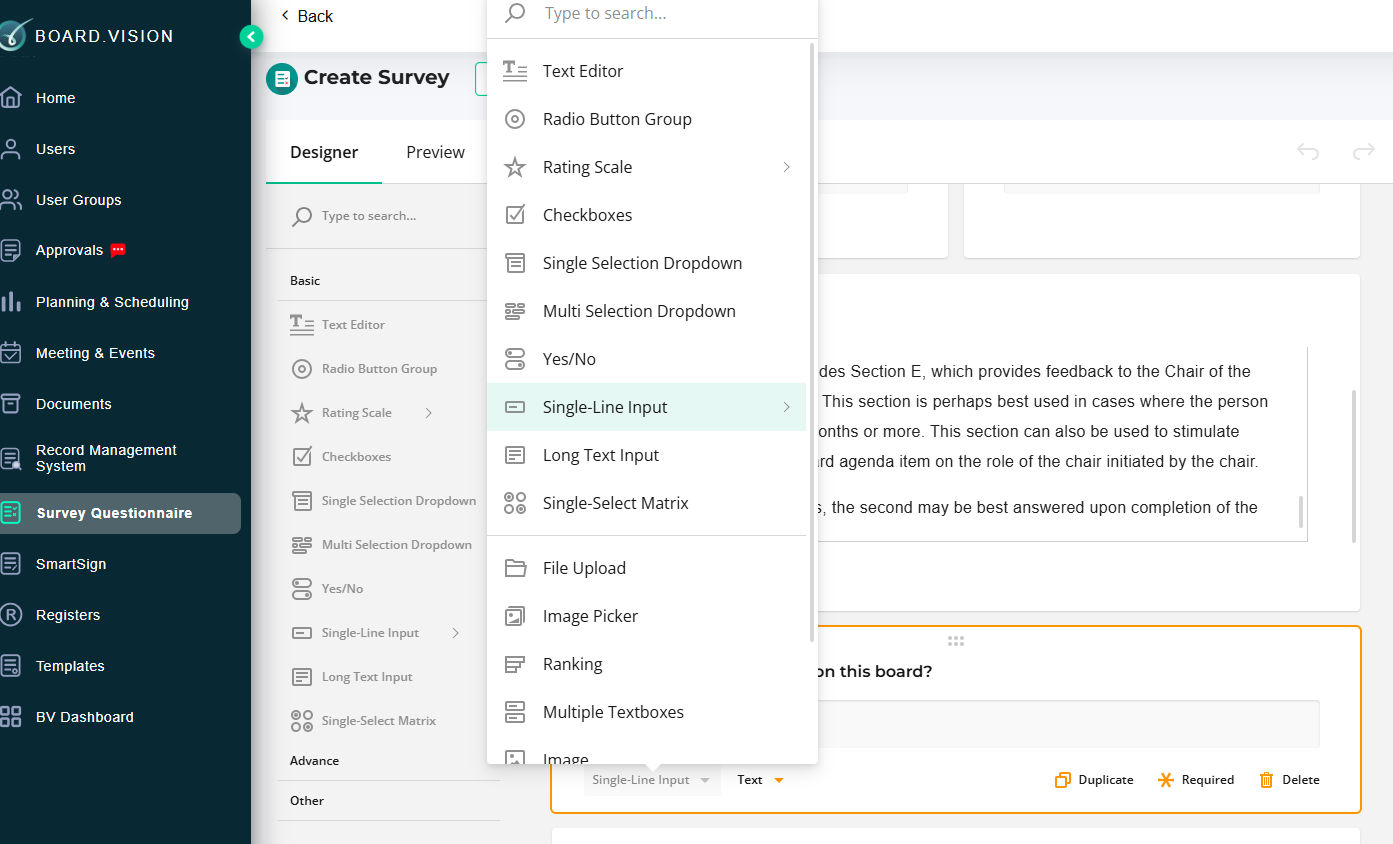
For each question, choose the response format that best fits your requirements:
Text & Input:
Single-Line Input: Short text responses.
Long Text Input / Text Box: Detailed, open-ended responses (with formatting options).
Multiple Textboxes: Collect several related text entries under one question.
Text Editor: This provides a footnote for the previous question.
Choice & Selection:
Radio Button: Single-answer multiple choice.
Checkboxes: Select multiple options from a list.
Selection Dropdown: Select a single answer or multiple answers from a dropdown menu.
Yes/No: Quick binary choice.
Image Picker / Images: Choose from visual response options or embed images.
Rating & Matrix:
Rating Scale (e.g., 1–5): Measure satisfaction or agreement levels.
Ranking: Reorder options by preference.
Single-Select Matrix: Select one answer per row across a grid.
Advanced Options:
File Upload: Allow respondents to upload supporting documents.
Image: Allow respondents to upload images.
Dynamic Panel: Add conditional sections that expand based on previous answers.
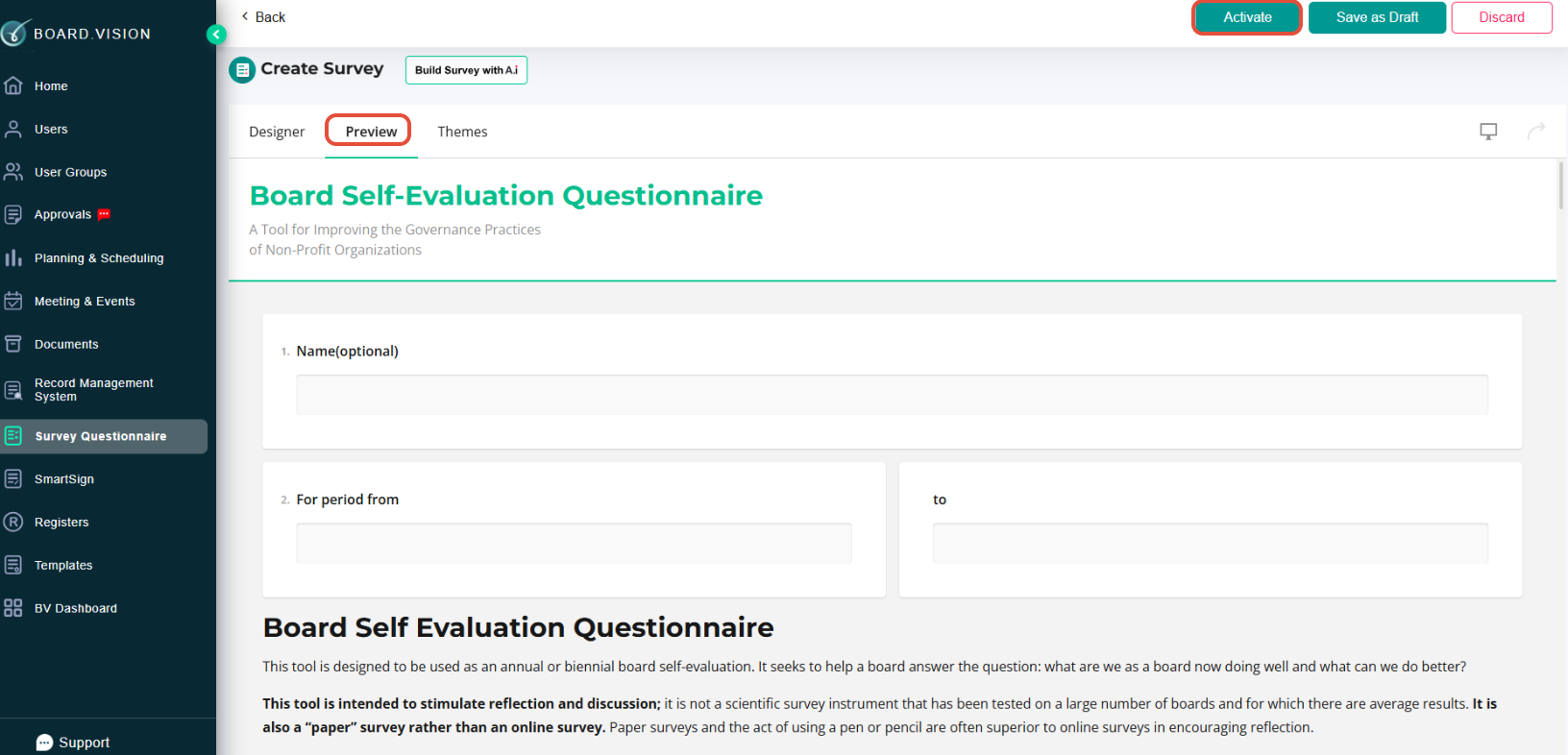
10) Click on Preview to review the survey layout and flow before publishing. Once done, click on Activate.
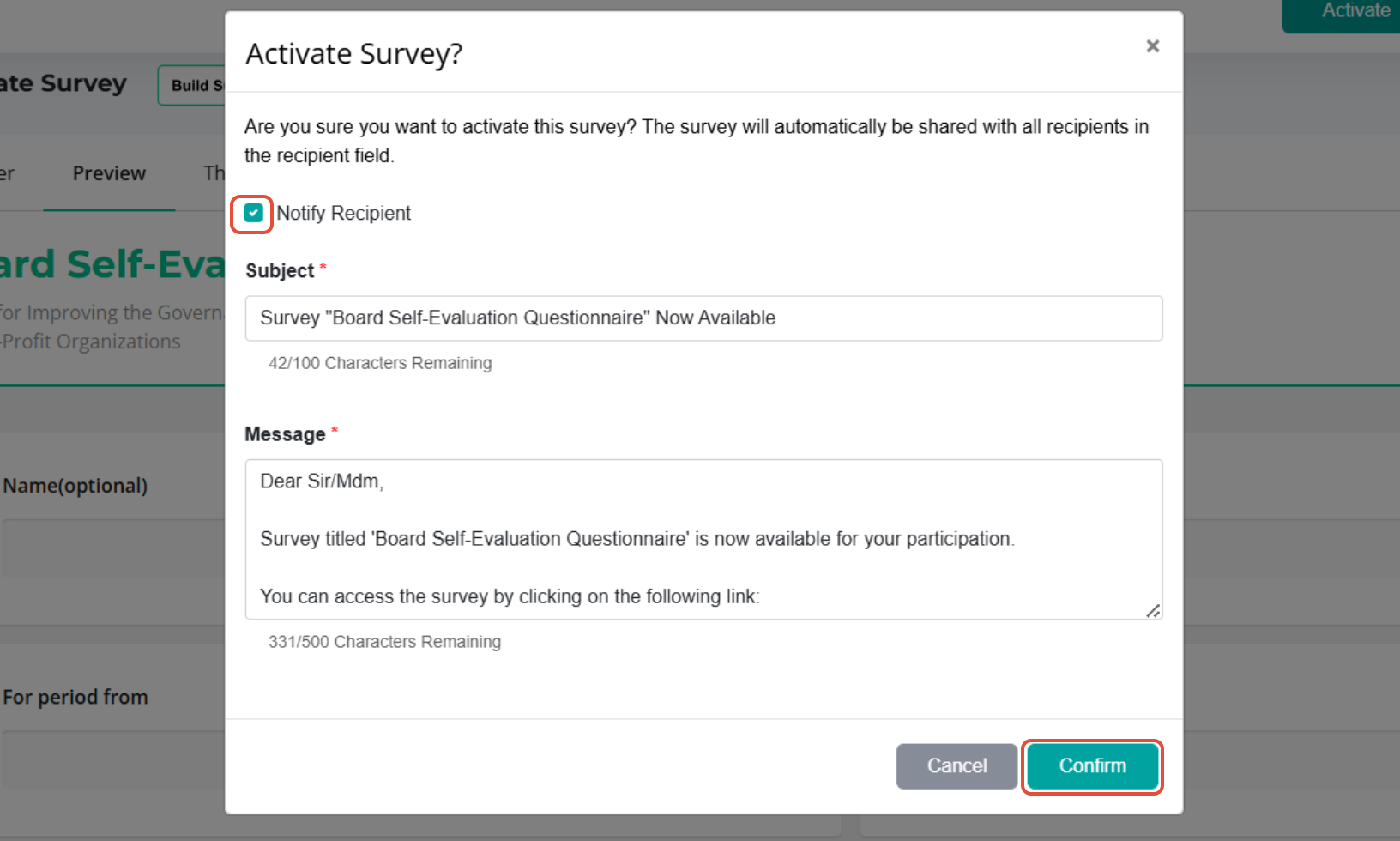
11) On the Activate Survey pop-up, check the Notify Recipient box if you wish to send email notifications. Click Confirm to launch your survey.
You have completed the tutorial on how to use a template to create a survey.
If you face any issues in completing the steps shown in this tutorial, please reach out to our Board.Vision Customer Success Team at support@board.vision or +65 6909 7100 and we will be happy to help.
Our hotline operating hours are from Mondays to Fridays 9:00 AM to 6:00 PM SGT (excluding public holidays).
Was this article helpful?
That’s Great!
Thank you for your feedback
Sorry! We couldn't be helpful
Thank you for your feedback
Feedback sent
We appreciate your effort and will try to fix the article