Welcome to Board.Vision Tutorials!
In this tutorial, we will walk you through the steps to create a new document template using predefined templates.
Important Note: The Board.Vision web app is optimised and supported for desktop use on Google Chrome (version 65.0 and later) and Microsoft Edge (version 87.0 and later).
To create a new document template using predefined templates:
1) Log in to your Board.Vision account using your registered email address and password.
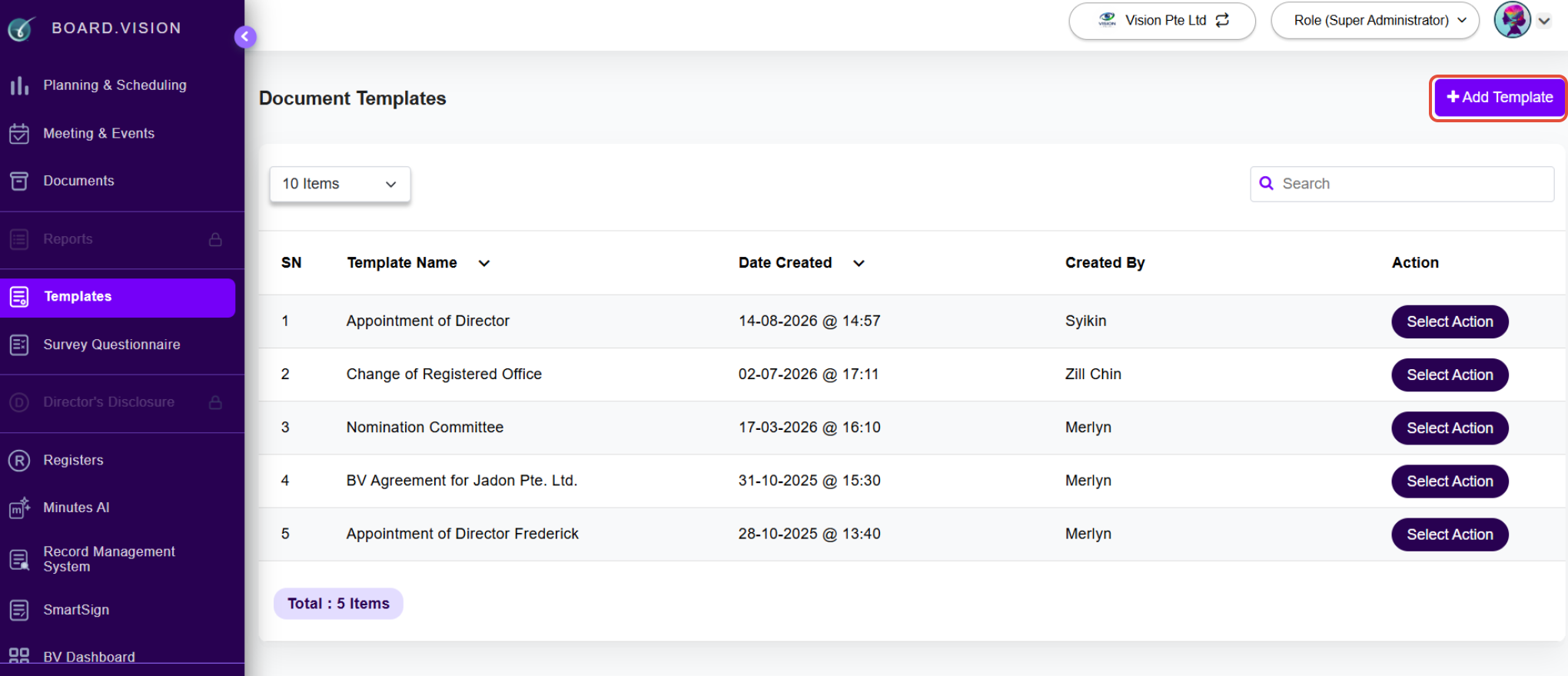
2) Go to Templates, and click on Add Template.
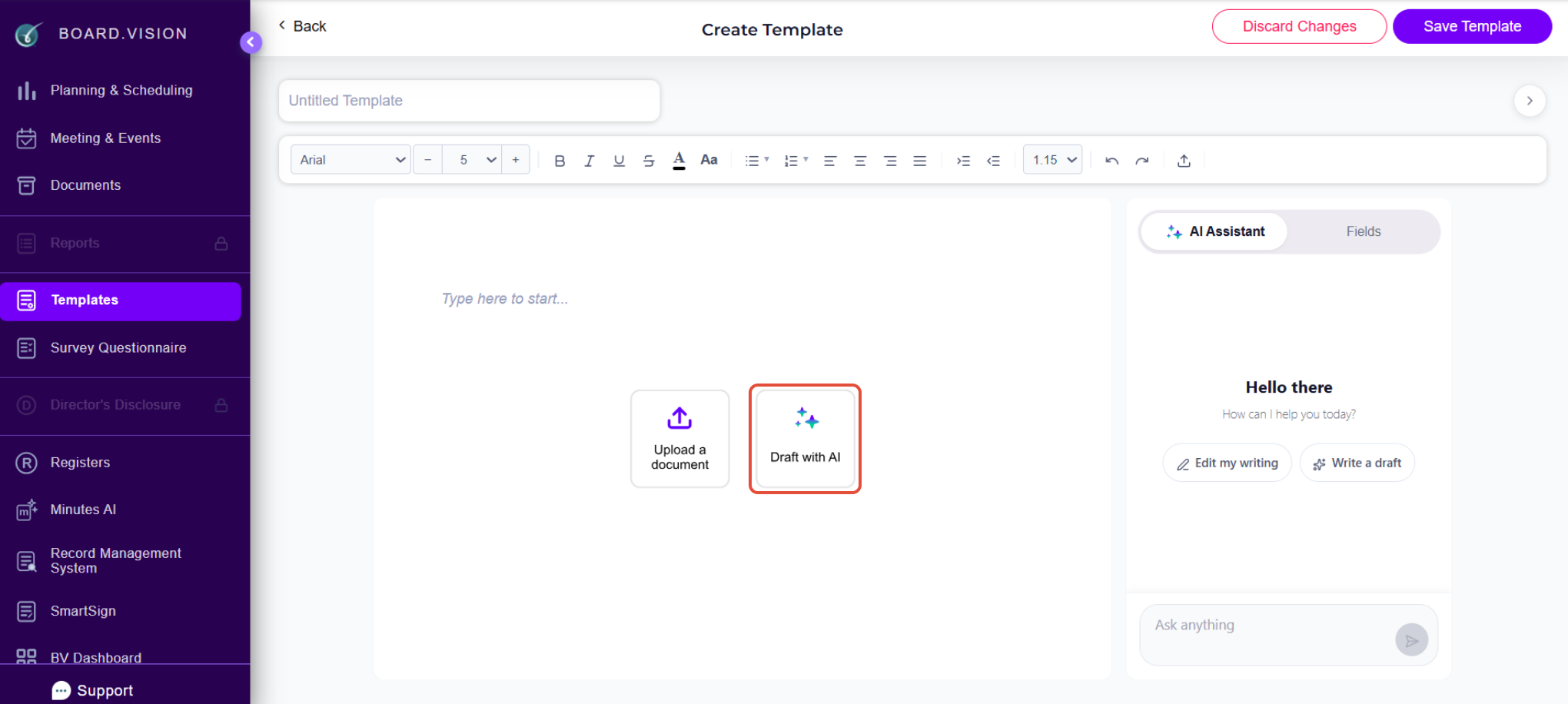
3) On the "Create Template" screen, click on Draft with AI.
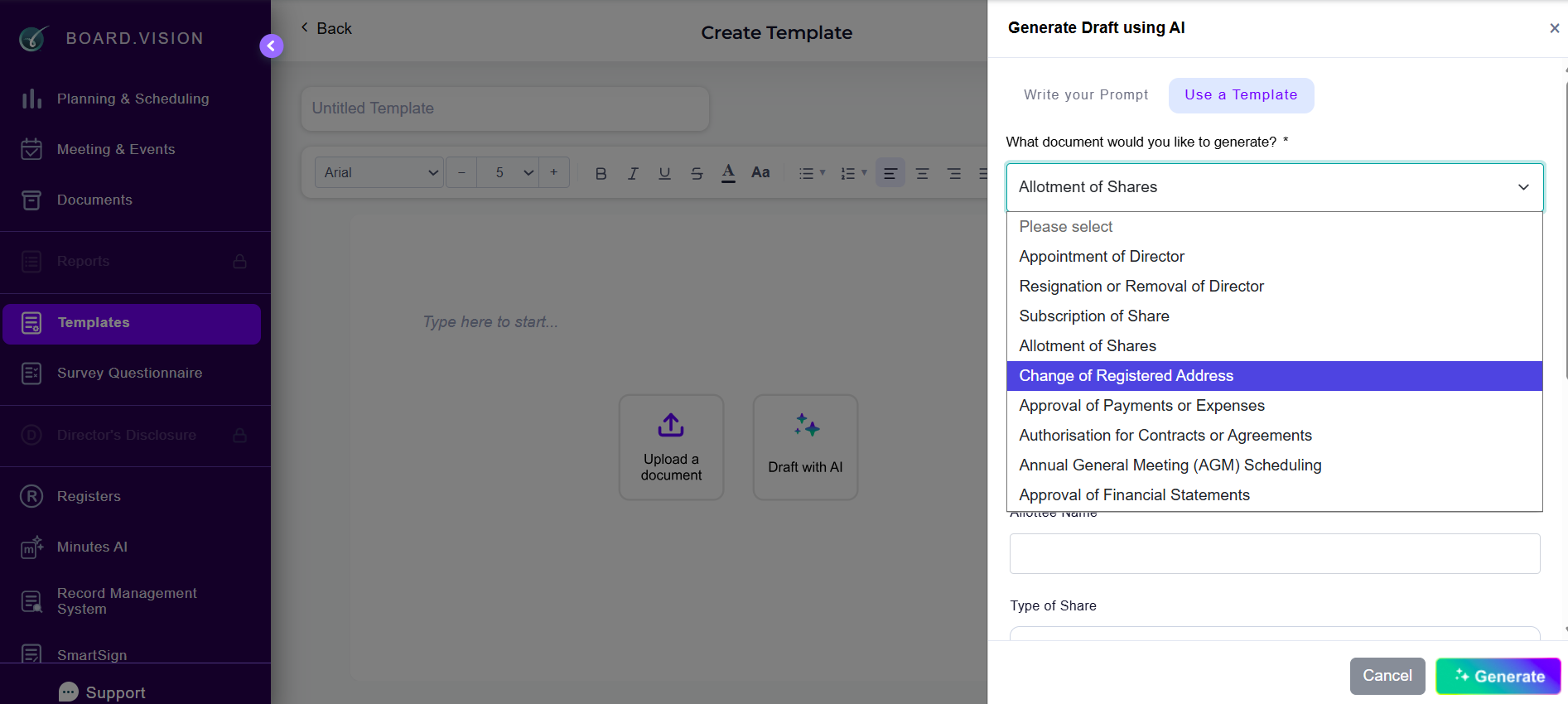
4) In the Generate Draft using AI pop-up window, select the Use a Template tab and choose a template from the dropdown list.
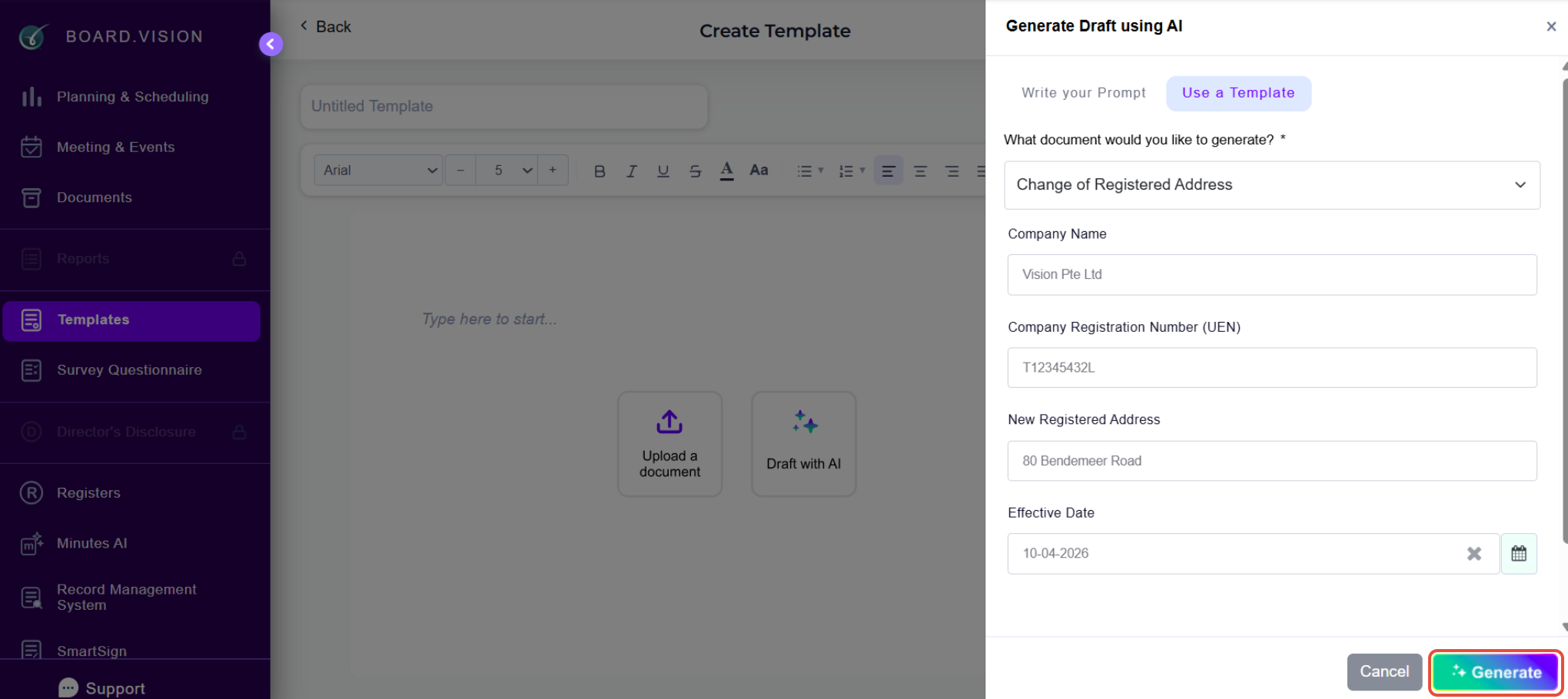
5) Fill in all relevant information and click on Generate.
6) The template will be generated, and you can adjust the alignment or formatting as needed to ensure the document appears correctly.
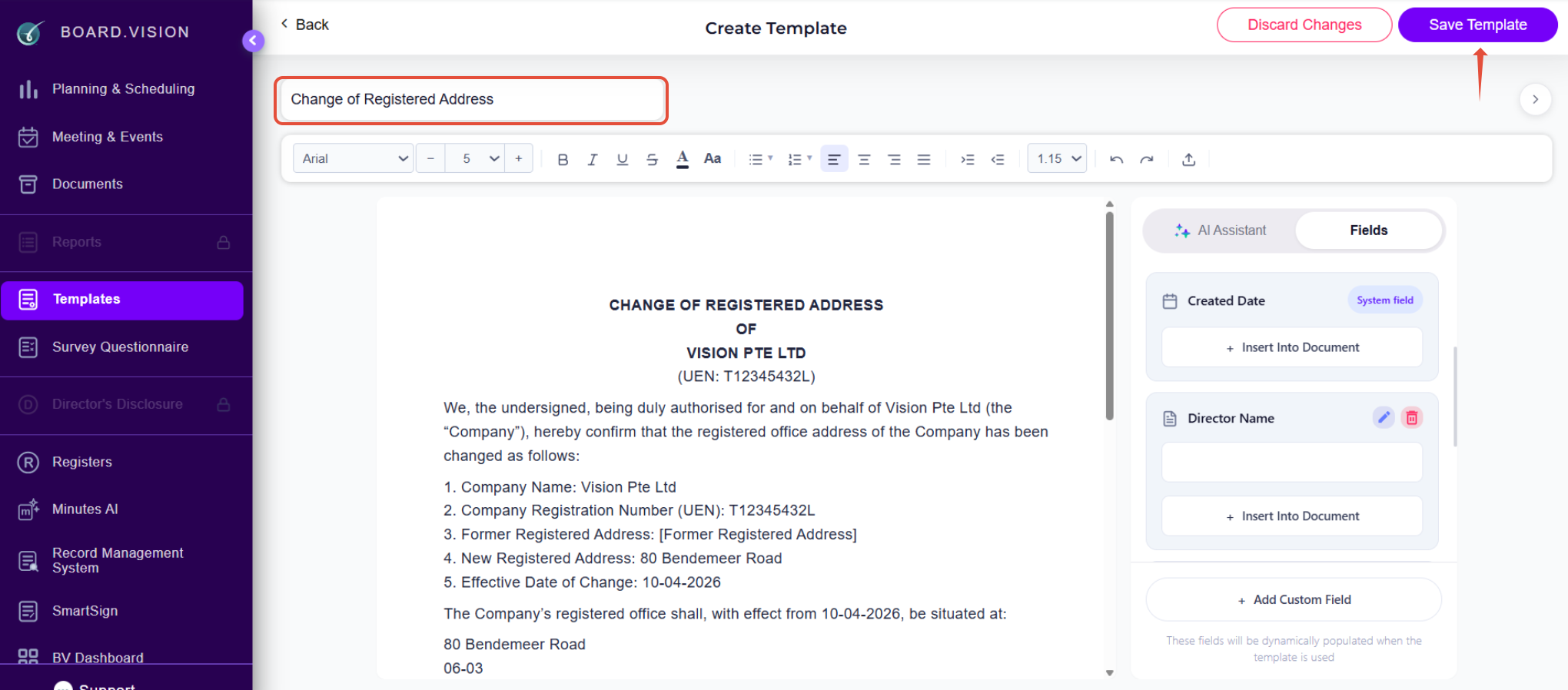
Once done, update the Template Name and click Save Template.
If you face any issues, please reach out to our Board.Vision Customer Success Team at support@board.vision or +65 6909 7100 and we will be happy to help.
Our hotline operating hours are from Mondays to Fridays 9:00 AM to 6:00 PM SGT (excluding public holidays).
Was this article helpful?
That’s Great!
Thank you for your feedback
Sorry! We couldn't be helpful
Thank you for your feedback
Feedback sent
We appreciate your effort and will try to fix the article