Creating a New User
Use the steps below to create a new user, assign a role, set access details, and send an account invitation.
1. Click Add User.
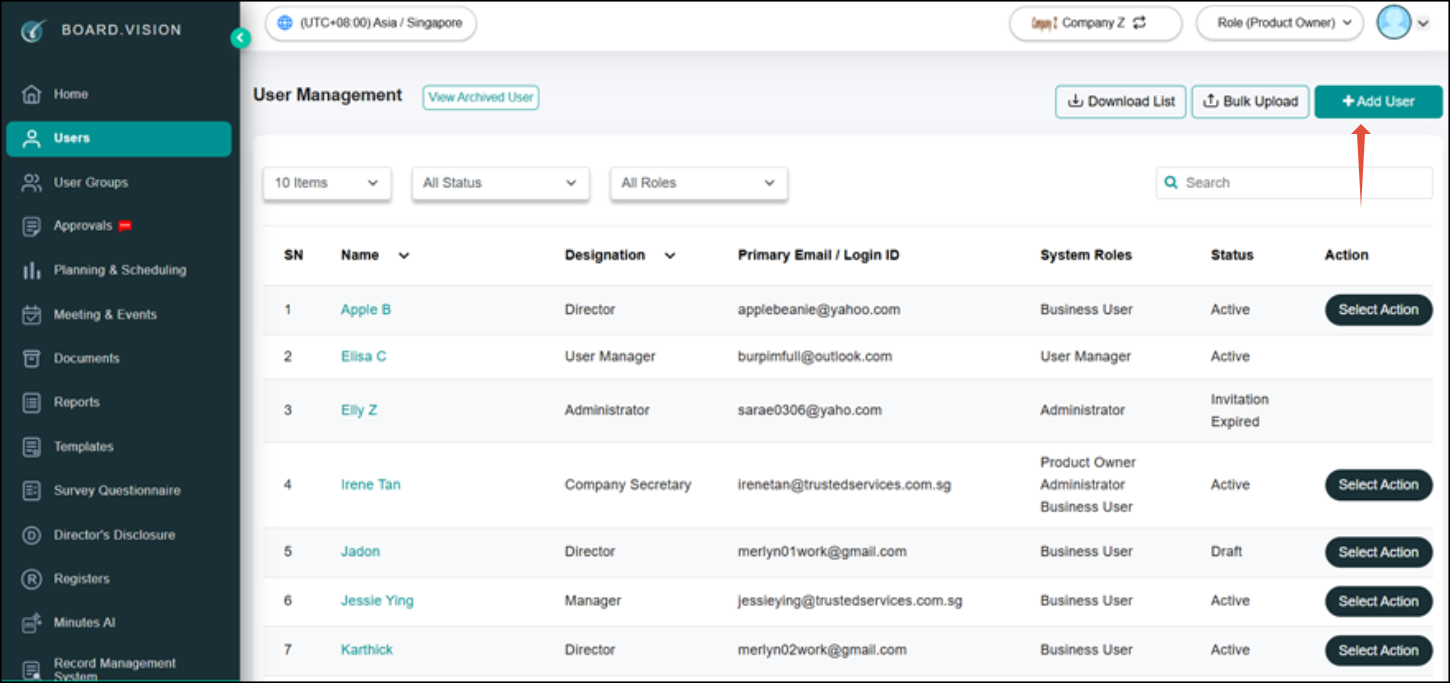
2. Enter the user’s details, then select the appropriate user role.
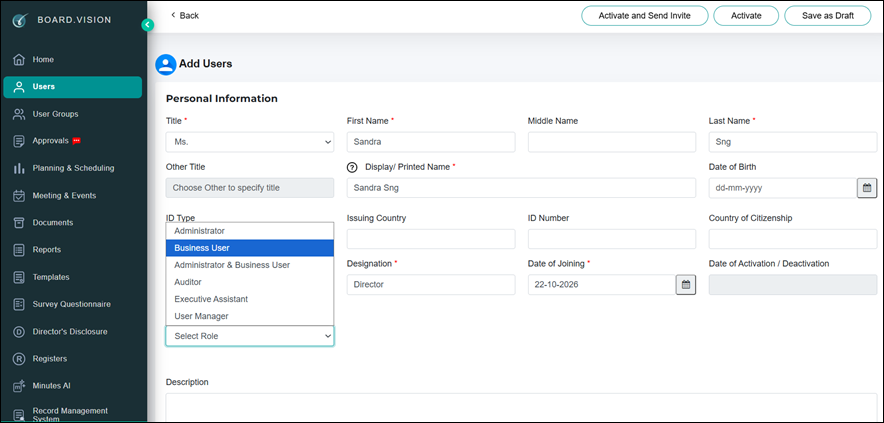
3. If the user role is Executive Assistant, you can tag the user to a Business User.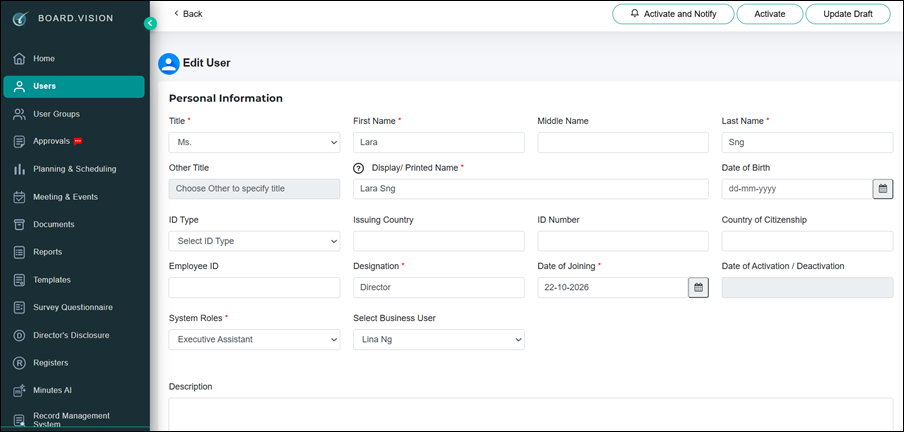
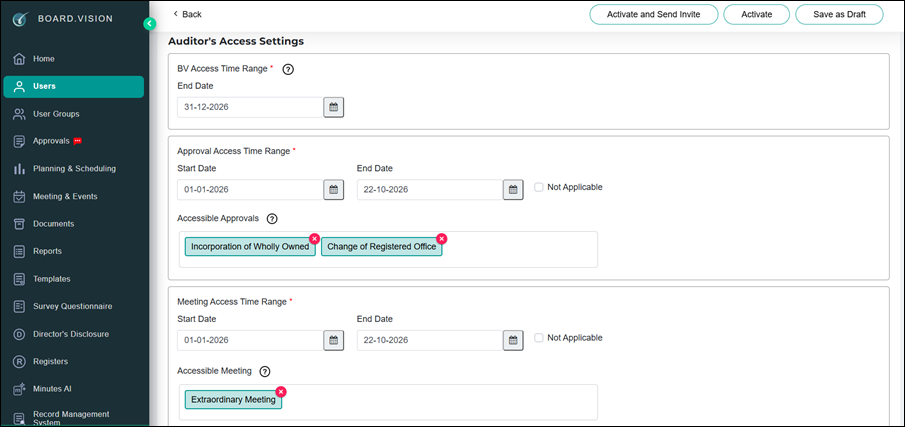
4. If the user role is Auditor, set the Auditor’s Access Time Range.
5. Enter the user’s email address and mobile number.
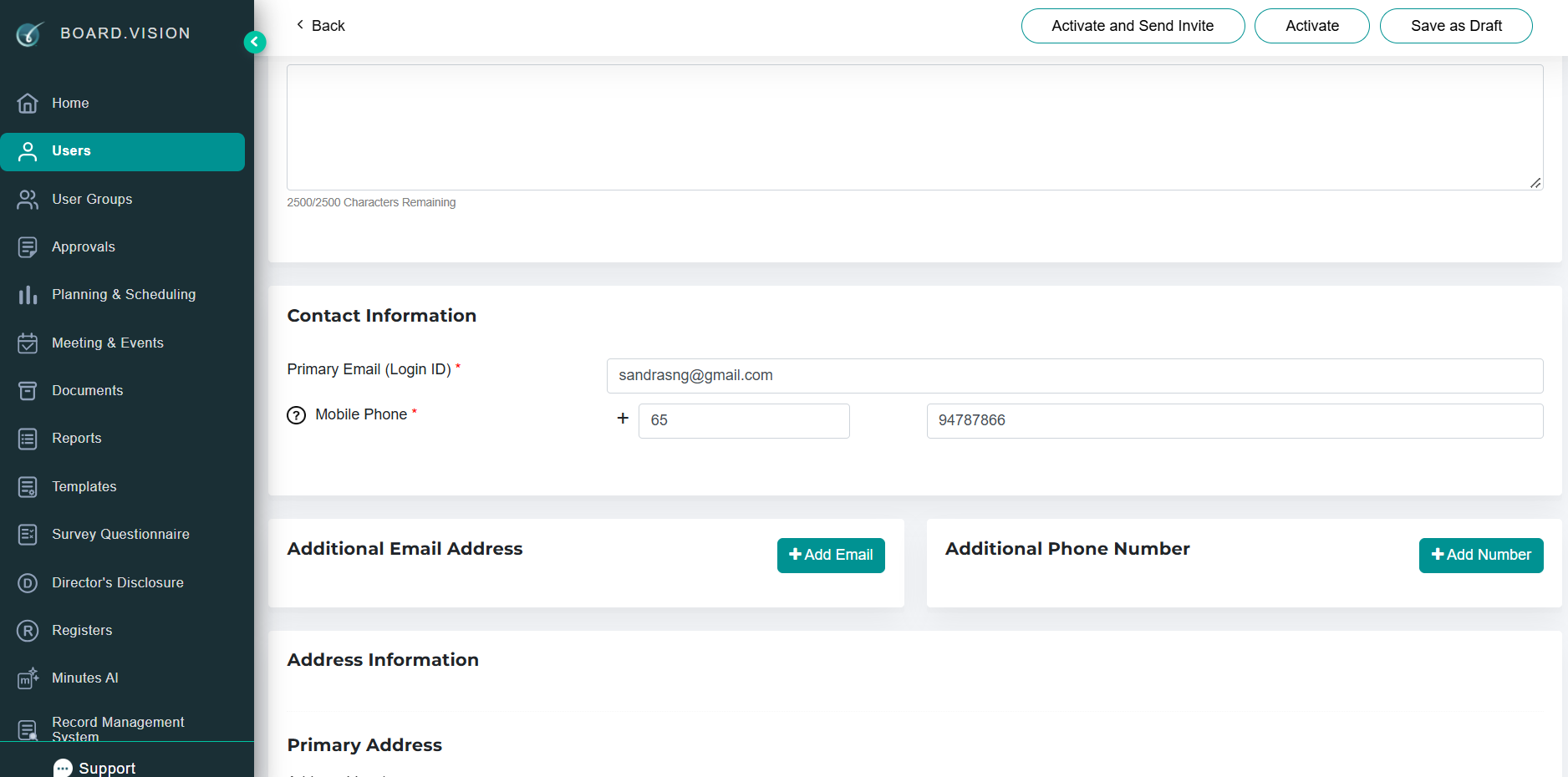
6. Click Activate and Send Invite.
7. Click Activate to add the user without sending a notification. Use this option when the user has been added to several companies and does not need a separate notification for each.
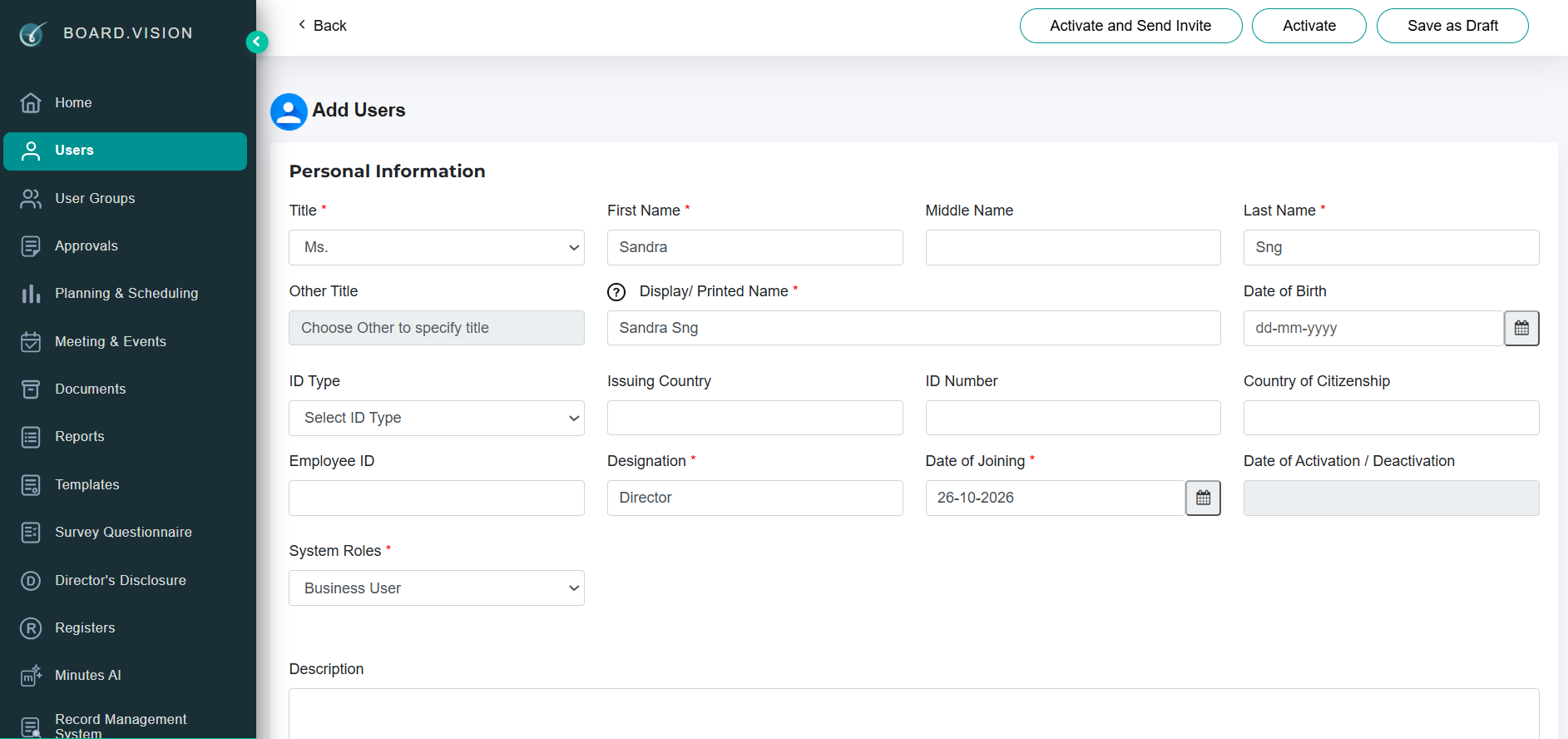
Important note: The user’s account activation link expires after 10 days. If the link expires, an administrator can resend the invitation from the user’s profile.
Creating a New User Group
Use the steps below to create a new user group and add members to the group.
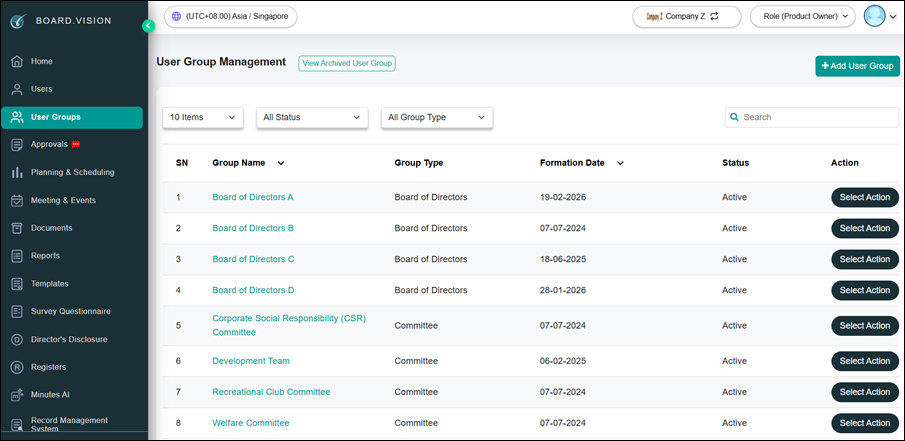
1. Click Add User Group.
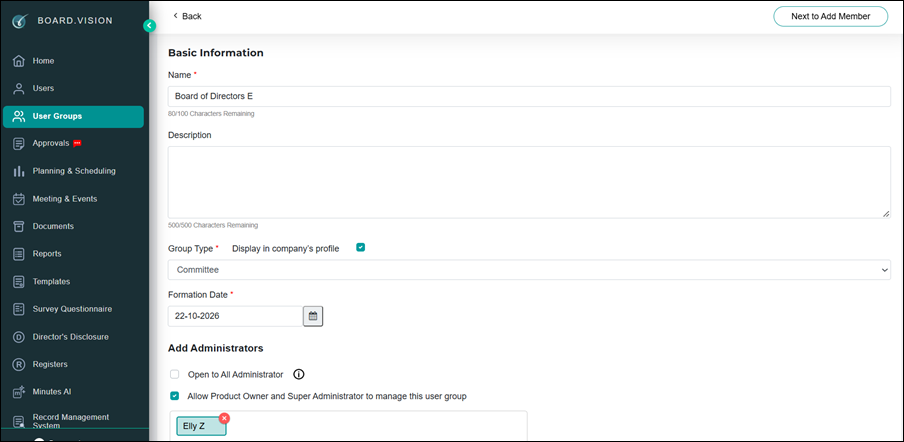
2. Enter the user group details, then click Next to Add Member.
3. Click Add Member.
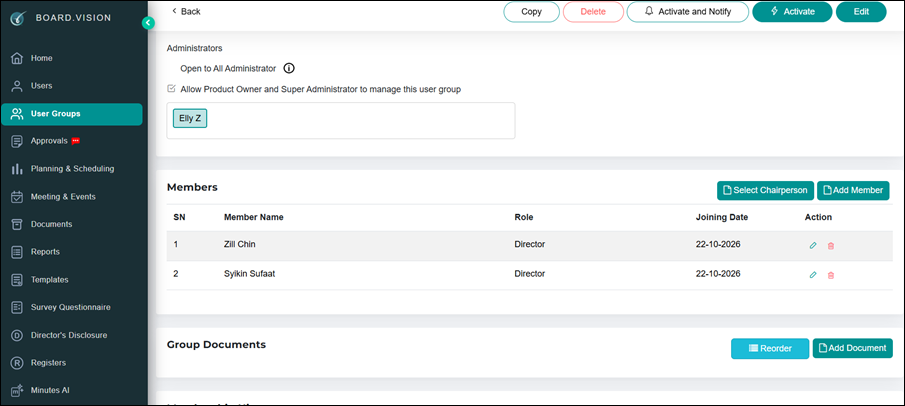
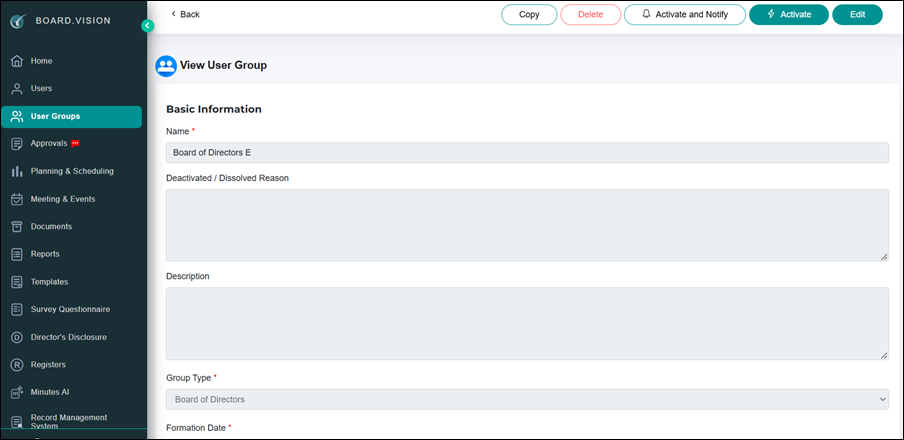
4. Click Activate and Notify to activate the user group and send notifications to members.
5. Click Activate to create a user group without sending notifications. Use this option when notifications are not required.
If you face any issues, please reach out to our Board.Vision Customer Success Team at support@board.vision or +65 6909 7100 and we will be happy to help.
Our hotline operating hours are from Mondays to Fridays 9:00 AM to 6:00 PM SGT (excluding public holidays).
Was this article helpful?
That’s Great!
Thank you for your feedback
Sorry! We couldn't be helpful
Thank you for your feedback
Feedback sent
We appreciate your effort and will try to fix the article