The Planning & Scheduling module allows administrators to propose meeting dates, collect availability from Directors and Executive Assistants (EAs).
Section 1: Customisation & Schedule Setup
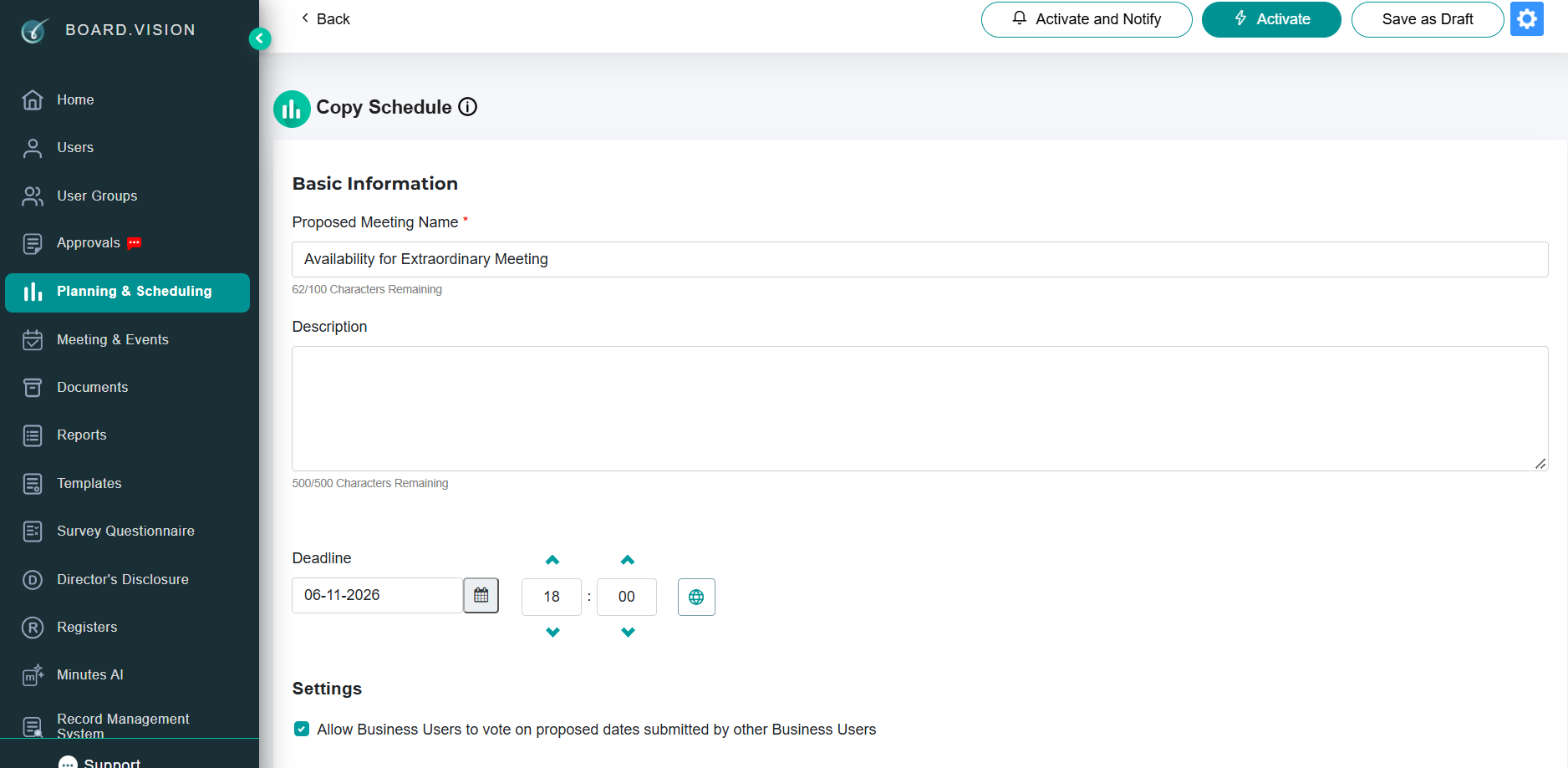
Administrators can set up meeting availability polls and schedule automated follow-ups before circulating the request.
1.1 Create a Schedule
Navigate to Planning & Scheduling on the left navigation panel.
Click + Add Schedule.
Input the Schedule Title, Description, and set the Response Deadline.
Propose candidate dates and time slots using the interactive calendar picker.
Under Participants, select individual users or choose pre-configured User Groups (e.g., Board of Directors, Audit Committee).
Click Save as Draft or click Notify Participants to circulate the availability poll.
1.2 Set Automated Reminders
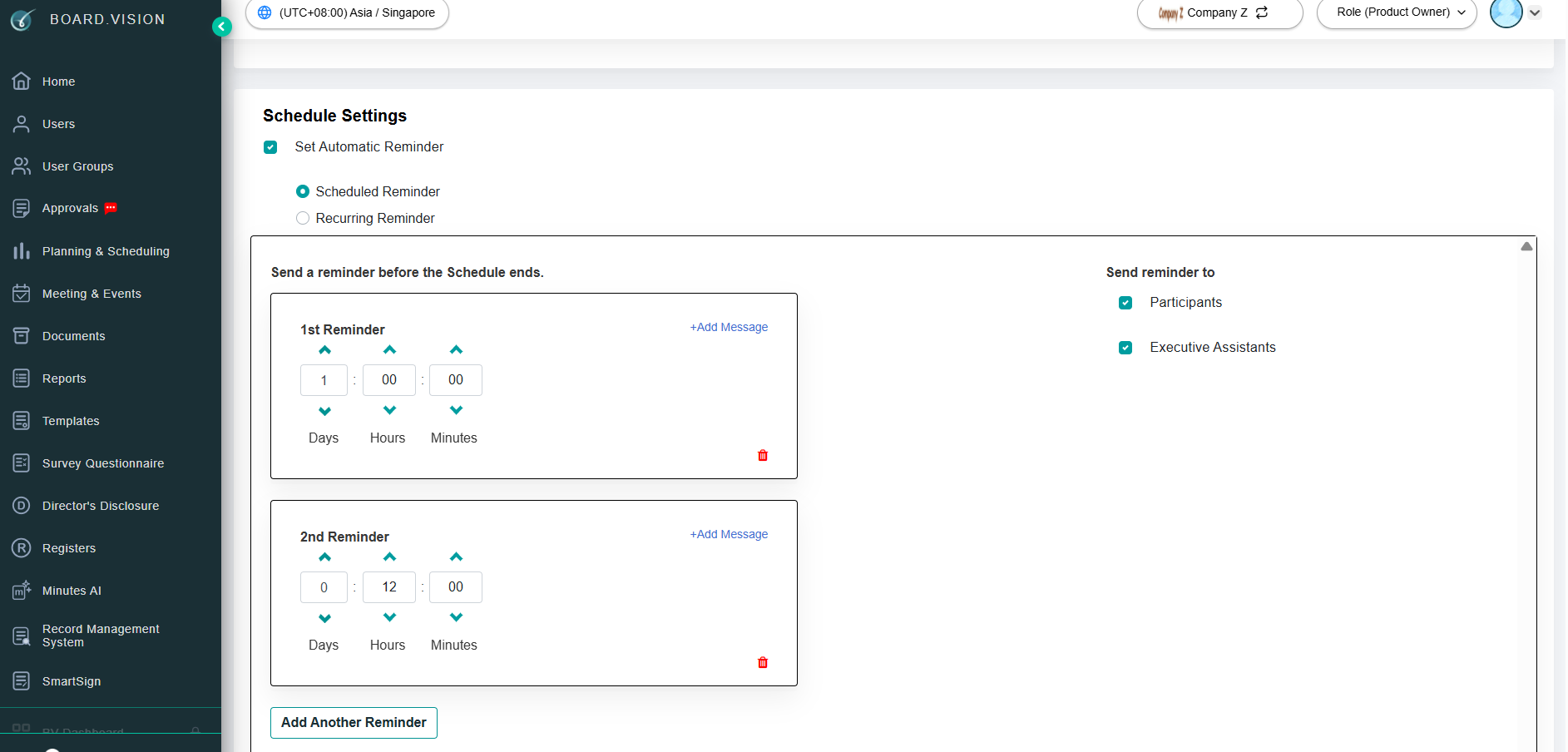
Set automatic reminders for pending participants and their Executive Assistants to submit their availability.
Before creating a Schedule, navigate to the Auto Reminder section via Global Settings.
Toggle Enable Auto Reminder to ON.
Set the Frequency (e.g., Daily or X days before deadline).
Click Confirm. The system will automatically dispatch email and push notifications to participants who have not yet submitted their vote.
Section 2: Managing Responses & Finalising Meeting Date
2.1 Record Availability / Vote on Behalf of a Director
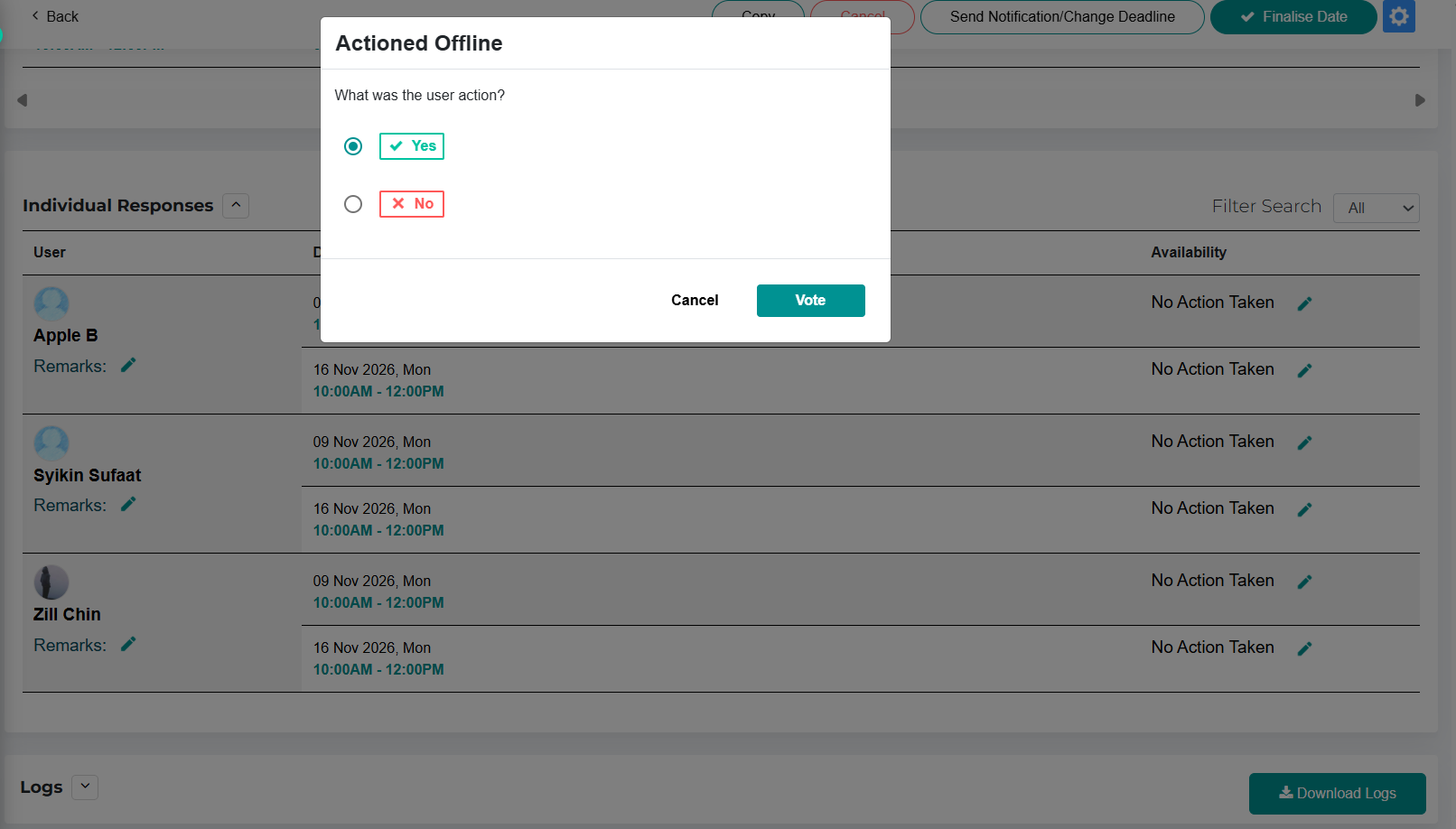
If a director communicates their availability offline or requests an administrator to input their preferences, administrators can log responses on their behalf.
Open the Schedule from the Planning & Scheduling Dashboard.
Go to Individual Responses.
Locate the Director and click the Action (pen icon) under the Availability column.
Select Yes or No for each proposed time slot.
Click Vote.
Note: Actions performed on behalf of a director are logged in the audit history with the administrator's account stamp.
Section 3: Finalisation & Audit Logging
3.1 Finalise an Upcoming Meeting Date
Once sufficient responses are collected, convert the preferred time slot directly into an official scheduled meeting.
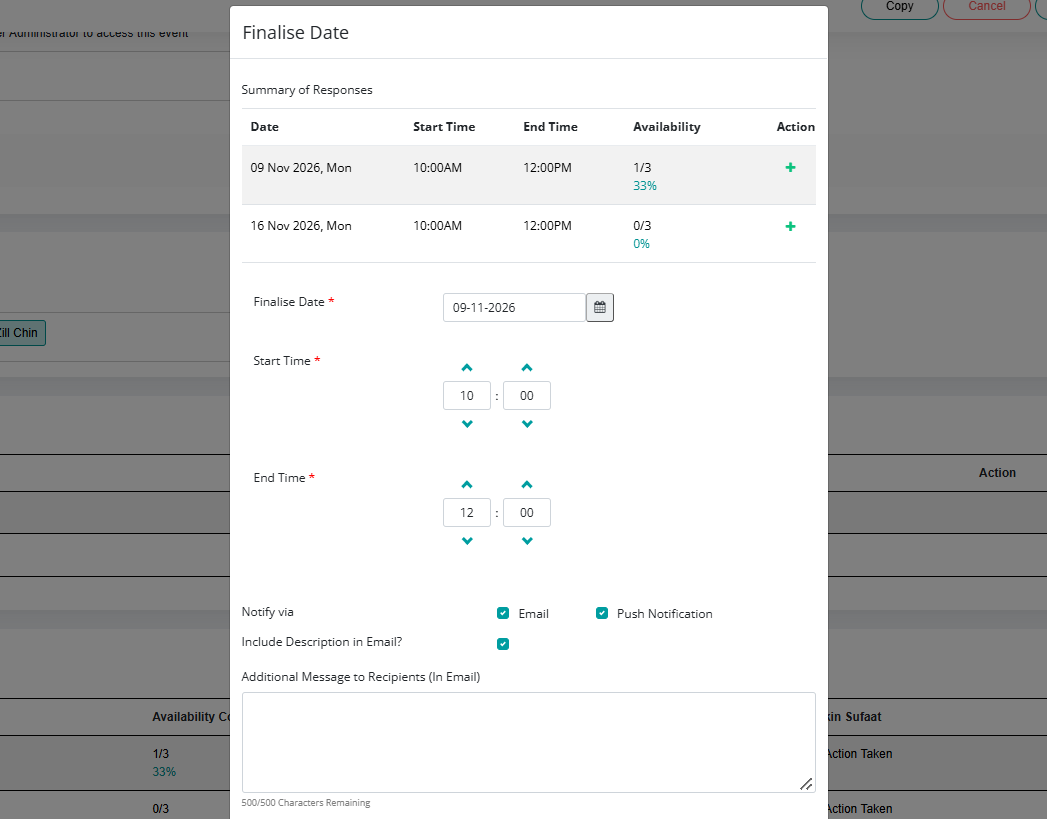
Open the active Schedule item and click Finalise Date.
Review the aggregated availability heat map across all proposed dates.
Select the date and time.
Choose to notify participants and EAs (if any).
Click Confirm.
If you face any issues, please reach out to our Board.Vision Customer Success Team at support@board.vision or +65 6909 7100 and we will be happy to help.
Our hotline operating hours are from Mondays to Fridays 9:00 AM to 6:00 PM SGT (excluding public holidays).
Was this article helpful?
That’s Great!
Thank you for your feedback
Sorry! We couldn't be helpful
Thank you for your feedback
Feedback sent
We appreciate your effort and will try to fix the article