In this article, we will walk you through activating your user account, reviewing meeting minutes and approval audit trails.
Once you have been added to Board.Vision as a user, you can access it via Google Chrome (version 65.0 and later) and Microsoft Edge (version 87.0 and later) from https://app.board.vision.
1. Account Activation & Login
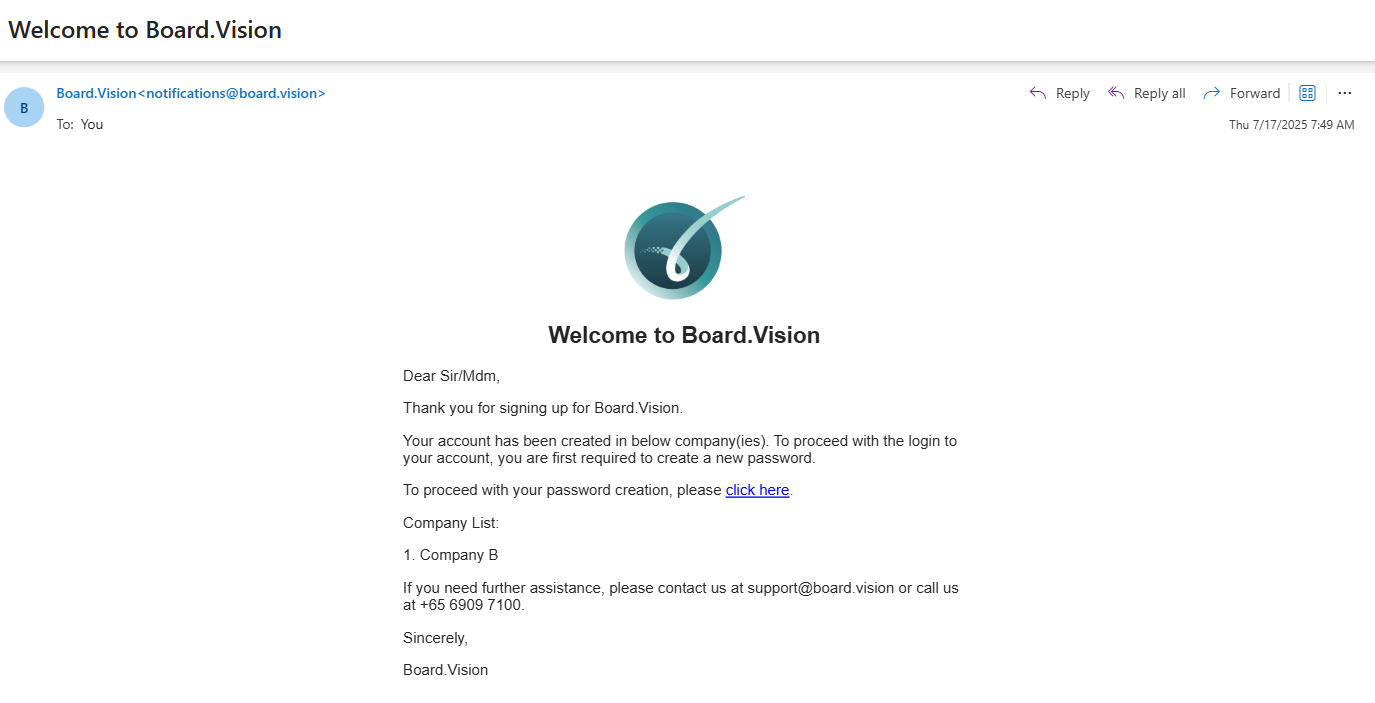
- Locate the email sent from Board.Vision <notifications@board.vision> and click the activation link.
- Create a secure password.
- Read and accept the Terms of Use.
- If your account is registered under multiple companies, select the entity you wish to access.
- Enter the 6-digit One-Time Password (OTP) sent to your registered mobile number or email.
For detailed instructions on activating your Board.Vision account using a desktop or laptop, please click the links below:
- For Normal users: Activating your Board.Vision Account via Desktop or Laptop
- For Single Sign-On (SSO) users: Activating your Board.Vision Account via Desktop or Laptop (For Single-Sign On Users)
Daily Login Procedure
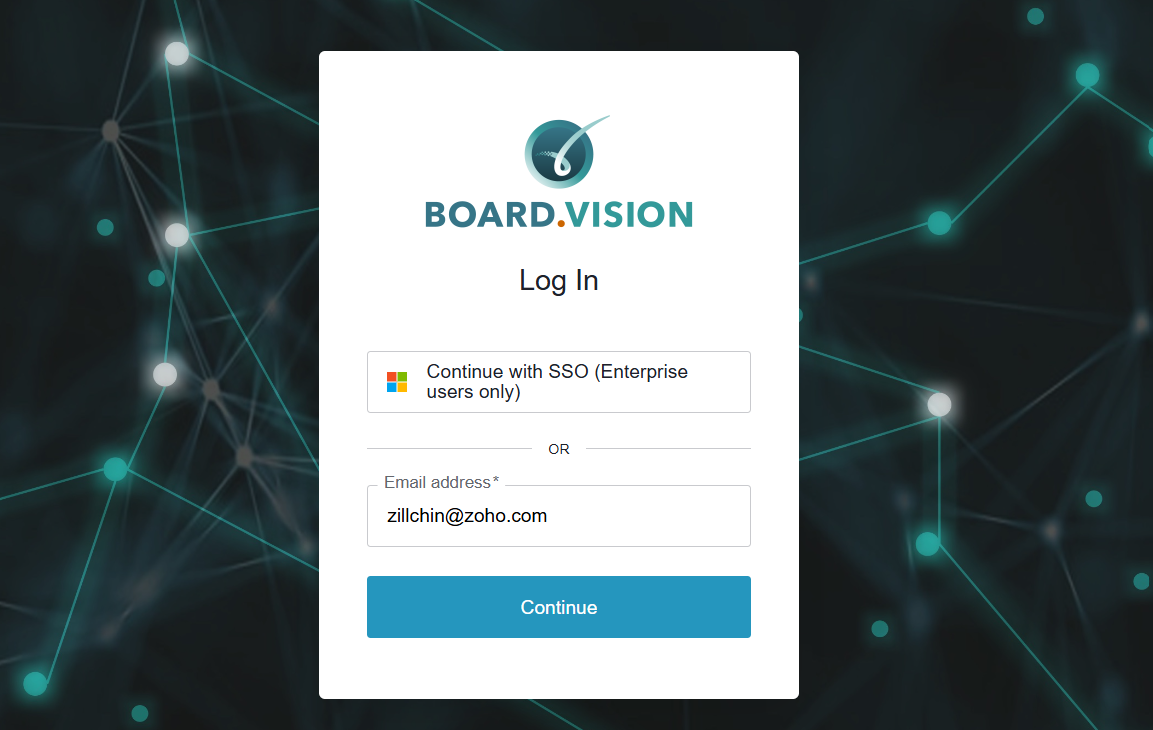
Go to Board.Vision.
Enter your registered email address and click Continue.
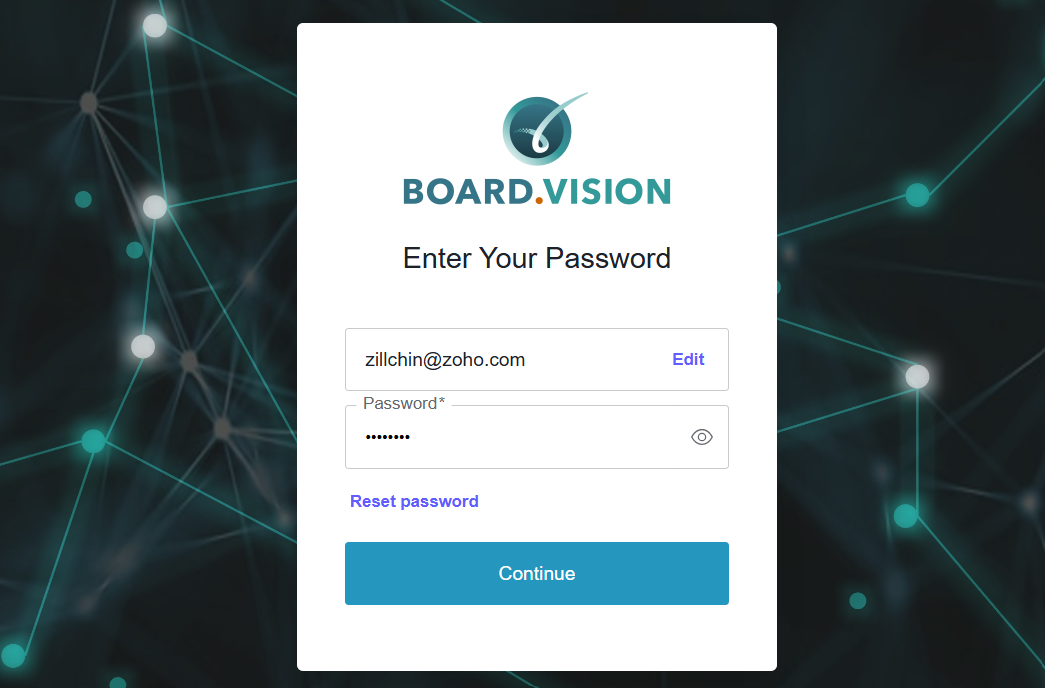
On the following screen, enter your password and select Continue. If your organisation utilises single sign-on (SSO), you are only required to enter your email address.
2. Viewing Approvals & CoC Reports
Navigate to Approvals from the side menu.
Select an approval resolution from the list to view resolution details.
Downloading the Certificate of Confirmation (CoC) Report:
Click View COC (or View Audit Trail Report) at the top right of the approval page.
The generated PDF includes the following information:
1) Approval Document
2) Basic Approval Information
3) Individual Response List
4) Certificate of Completion
5) Authentication Audit
6) Supporting Evidence Document (if the Administrator has submitted an offline decision on behalf of the Director)
3. Viewing Meeting Information & Minutes
Navigate to Meetings & Events from the side menu.
Click on the relevant meeting title from the list to view:
Meeting Details: Date, time, venue, organiser details
Administrators, Participants, and EA list.
Agendas & Attachments:
Read-only board papers (if enabled by the Administrator).
Meeting Minutes.
5. Searching Documents in the Record Management System (RMS)
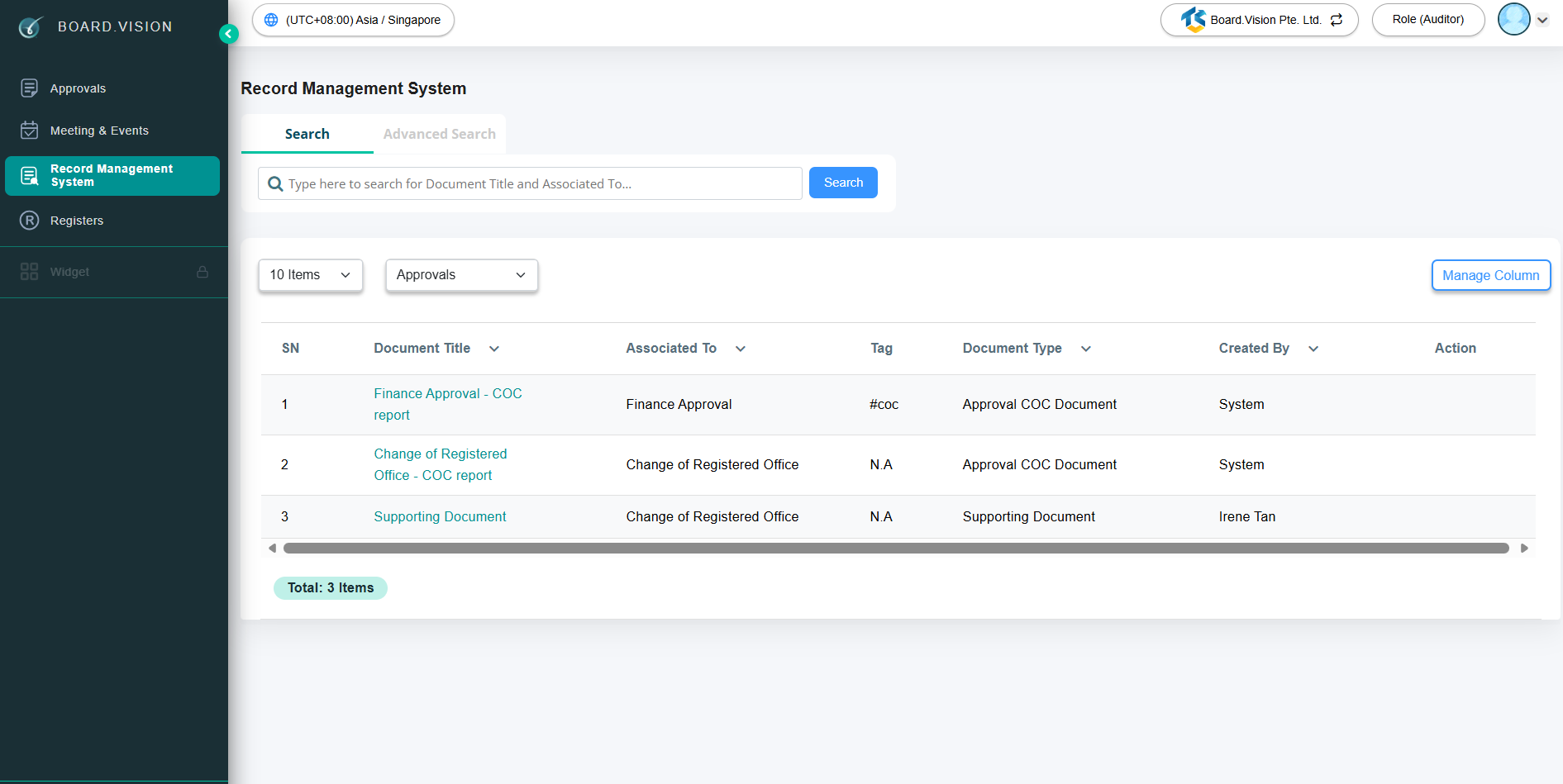
Select Record Management System (RMS) from the main menu.
Locate specific files using global keyword parameters.
Enter your search query into the top RMS Search Bar.
Search by Document Title and Associated To.
For a more detailed search across specific parameters, use the Advanced Search tool.
Click Advanced Search.
Refine your query by specifying additional criteria, such as Document Type, Date Range, Uploaded By, or specific Tags.
Click Advanced Search to view the filtered list of documents.
If you face any issues, please reach out to our Board.Vision Customer Success Team at support@board.vision or +65 6909 7100 and we will be happy to help.
Our hotline operating hours are from Mondays to Fridays 9:00 AM to 6:00 PM SGT (excluding public holidays).
Was this article helpful?
That’s Great!
Thank you for your feedback
Sorry! We couldn't be helpful
Thank you for your feedback
Feedback sent
We appreciate your effort and will try to fix the article