Welcome to Board.Vision Tutorials!
In this tutorial, we will walk you through the steps to search for documents in the Record Management System (RMS).
Important Note: Board.Vision web app is supported on Google Chrome (version 65.0 and later) and Microsoft Edge (version 87.0 and later).
To search documents in the RMS:
1) Log in to Board.Vision using your registered email address and password.
2) Go to the Record Management System.
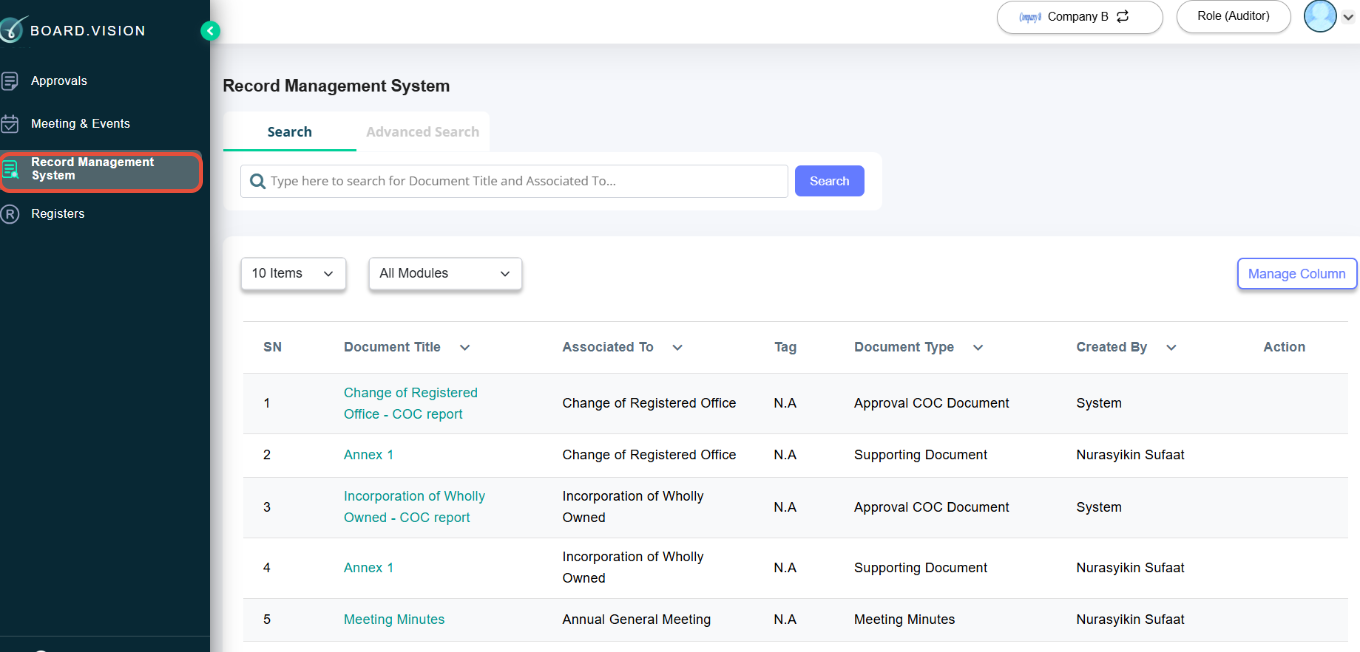
3) Basic Search
a) Locate the search bar at the top and type in keywords related to the document you are looking for, such as Document Title or "Associated To".
- Document Title: The name given to the document when it was uploaded.
- Associated To: Indicates which user, user group, meeting, or approval the document belongs to.
b) Click the Search button. The system will display matching documents based on your keywords.
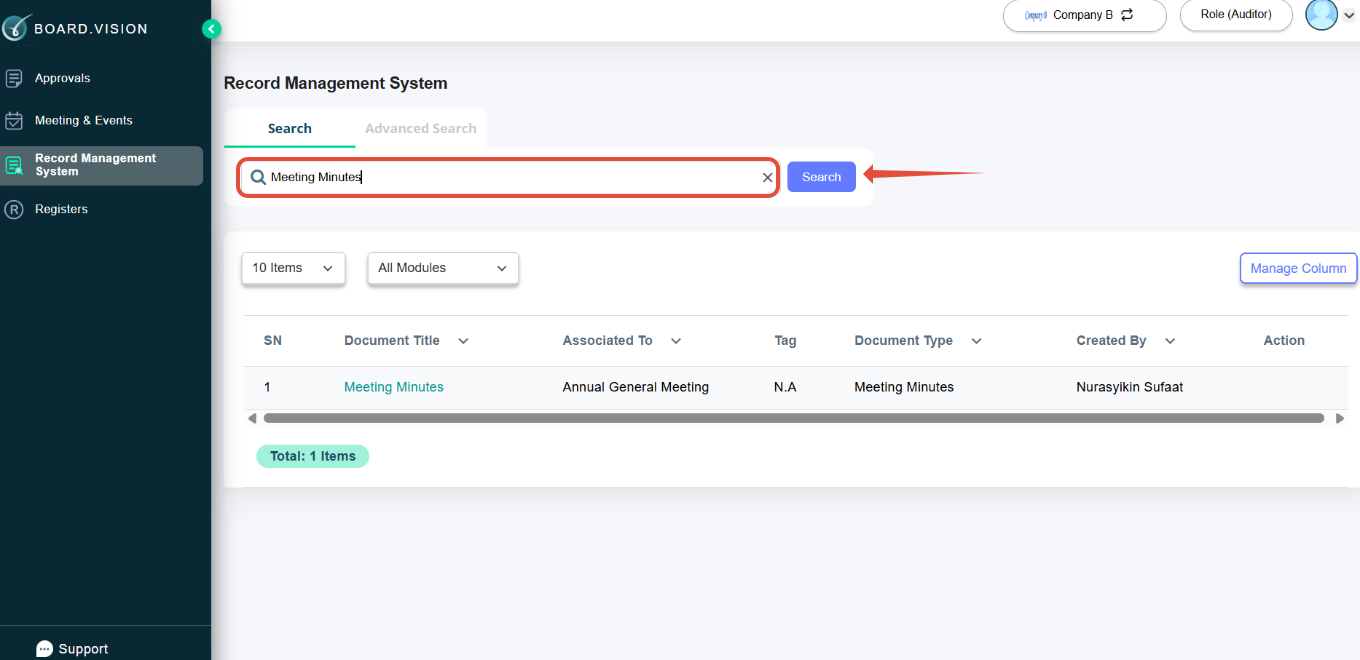
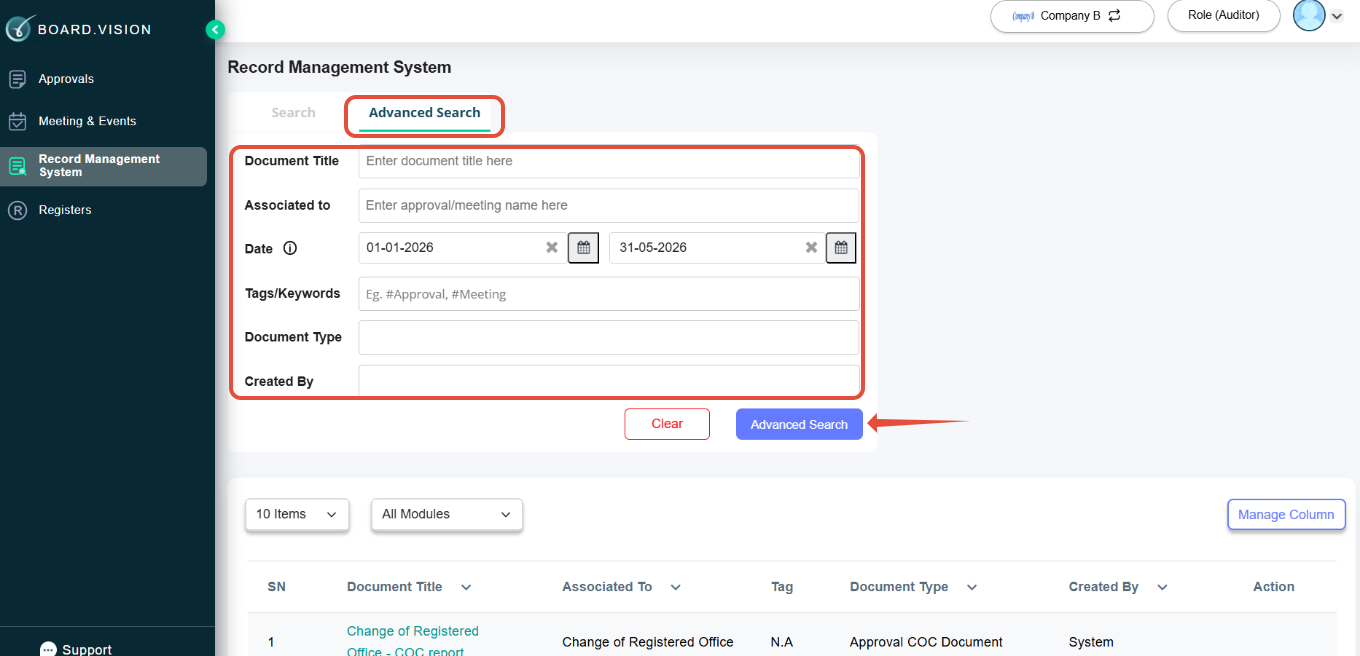
4) Advanced Search
a) Tap on Filters (next to the basic search).
b) Enter filters such as:
- Document Title: The name given to the document when it was uploaded.
- Associated To: Indicates which user, user group, meeting, or approval the document belongs to (eg, an approval or meeting name)
- Date: Specify the date range for the documents when they were uploaded to the system.
- Tags: Shows the tags you added when uploading documents via RMS, Approvals, Meetings, or User/User Groups.
- Document Type: Categorises the file, for example: User Document, User Group Document, Approval Document, Meeting Document, Agreements, Financial Statements, etc.
- Created By: Indicates the user who uploaded the document into RMS.
c) Click the Advanced Search button. The system will display matching documents based on your keywords.
If you face any issues in completing the steps shown in this tutorial, please reach out to our Board.Vision Customer Success Team at support@board.vision or +65 6909 7100 and we will be happy to help.
Our hotline operating hours are from Mondays to Fridays 9:00 AM to 6:00 PM SGT (excluding public holidays).
Was this article helpful?
That’s Great!
Thank you for your feedback
Sorry! We couldn't be helpful
Thank you for your feedback
Feedback sent
We appreciate your effort and will try to fix the article